
There are two ways to delete an article:
- Setting the article's publishing status to deleted
- Selecting the trash can icon next to the article in Pages.
Both methods give you the option to set up an article redirect when you delete the article. You can also set up redirects separately using Old Links.
You can also bulk delete articles. Refer to Deleting articles in bulk in Manage for more information.
What happens when you delete an article
When you delete an article, here's what happens:
- It's completely removed from your live knowledge base (the table of contents, category landing pages, search results, article lists, etc.).
- If you haven't set up a redirect, when a reader tries to navigate to the article's URL, they'll receive a 404 page.
- All view data for the article is removed from the Reporting Dashboard. This data cannot be recovered if you recover the article and will disappear from the Popular Articles Report.
- It's removed from the Pages hierarchy.
- It's added to the Deleted filter in Manage. You can Recover a deleted article using this filter if you improperly deleted something.
Deleted articles will remain in the Deleted filter in Manage unless you purge them to permanently delete them. Refer to Purge deleted articles in Manage for more information.
Set article status to deleted
- Open the article for editing,
- Select Deleted in the Publishing Status dropdown.
- Optional: KnowledgeOwl displays the Redirect to another article checkbox. If you want to redirect the article's URL to another article, select the checkbox, then type an article name in the text box and choose an article to redirect to.
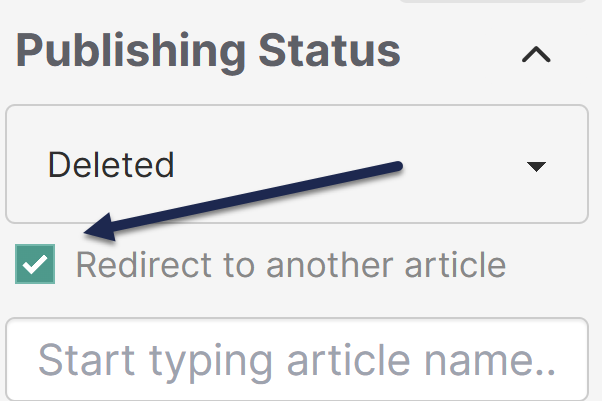 Sample redirect to another article checkbox
 - Select Save to delete the article and set up the redirect if you chose to create one.
Delete an article from Pages
- In the top-level Pages page, hover over the article, then select the Delete (trashcan) icon.
 Sample delete trashcan icon
 - The delete confirmation modal opens.
- Verify that the article name listed is the one you meant to delete.
- Optional: To redirect visitors to the article to a different page, select Redirect to another article, then type an article name in the text field.
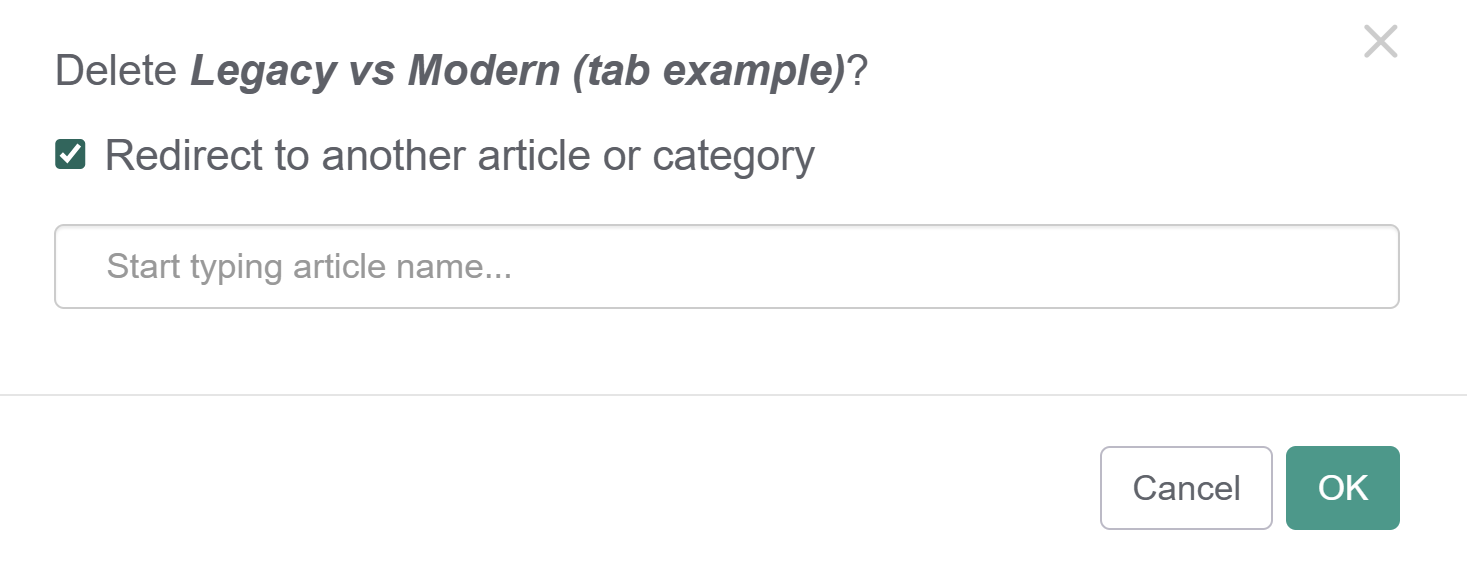 Sample delete article modal
 - Select OK to delete your article and set up your redirect if you chose to create one.
Find or recover deleted articles
You can review a full list of all your deleted articles in Manage using the Deleted Standard filter. Refer to Use standard Manage filters for more information.
Refer to Recover a deleted article or Recover multiple deleted articles if you've incorrectly deleted one or more articles and need to recover them.
Purge deleted articles
When you delete an article, it remains available in the Deleted filter in Manage until you purge it. Purging deleted articles permanently removes them from KnowledgeOwl.
Refer to Purge deleted articles in Manage for more information.
Our default Editor and Writer roles have permission to delete articles. If you're using a custom author role, that role must have the Articles custom author role permission to Delete articles to bulk delete articles.
Deleting an article will:
- Remove it completely from your live knowledge base (the table of contents, category landing pages, search results, article lists)
- Show a 404 page when someone navigates to the article's URL, unless you've set up an old link to redirect to a different page.
- Delete all view data for the article. This data will not be recovered if you recover the article and will disappear from the Popular Articles Report.
- Remove it from the Pages hierarchy (though you can still find it in the Manage > Deleted filter)
You can delete multiple articles at once using Manage Articles. To do so:
- In the lefthand navigation, select Manage. The Manage Articles page opens.
- Use a filter or search to display the articles you'd like to delete.
- Check the box next to each article you'd like to delete. (Or use the checkbox in the header to select all displayed articles/all articles in filter.)
- Select the Delete link just above the article list:
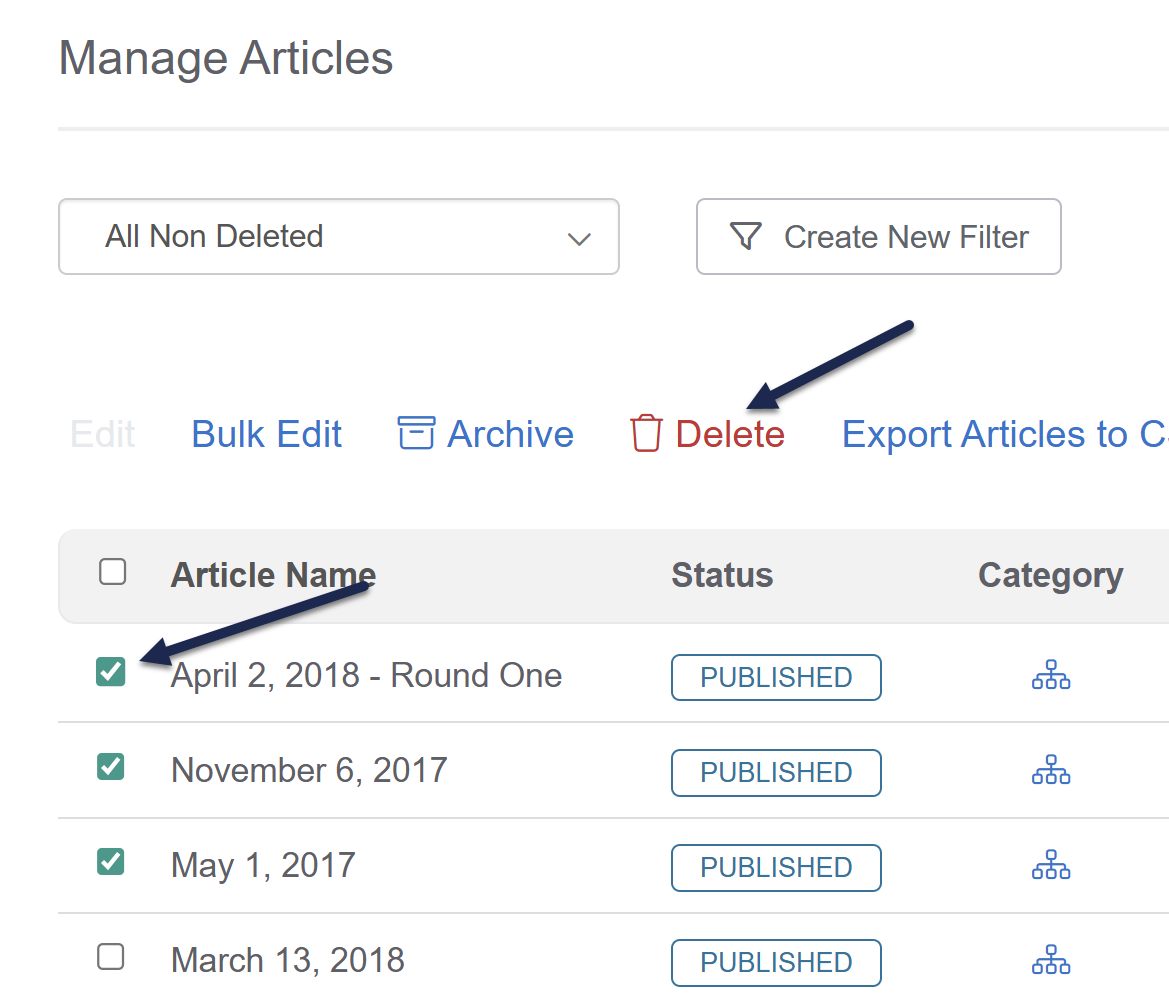 Select the articles you'd like to delete and then click the Delete link
- A confirmation message opens, identifying how many articles you've selected to delete. Select OK to delete the articles you selected.
Once the articles are deleted, if you need to view or edit them, select Deleted from the filter dropdown at the top to view a full list of deleted articles:
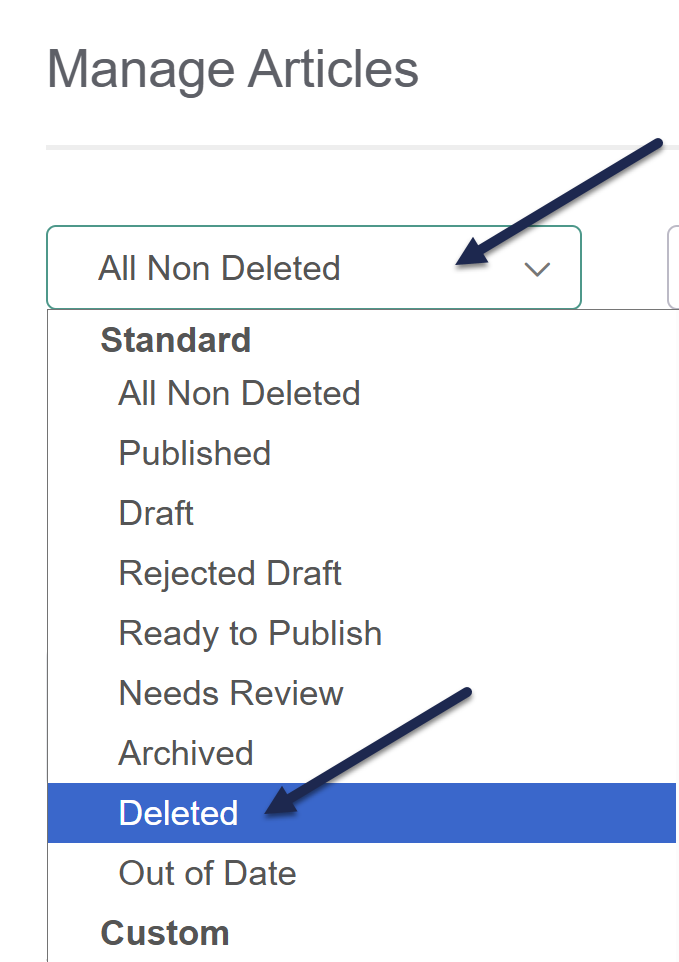 Use the Deleted filter to view deleted articles
What happens if you accidentally deleted an article or mark it as archived?
Good news: it's not gone forever!
KnowledgeOwl stores all deleted and archived articles in Manage, and you can recover them from there:
- In the left navigation, select Manage. The Manage Articles page opens.
- Use the dropdown near the top of the page to select the Standard Deleted or Standard Archived filter:Or create a custom Manage filter to get a more specific filter, using the Deleted or Archived Status checkbox to include deleted or archived articles.
 Select the Deleted Standard filter
 - Once you have a filter that displays the article you'd like to recover, select the name of the article. This opens the article's editor in a new tab.
- In the editor, use the Publishing Status dropdown to resave the article with whatever publishing status you'd prefer (such as Draft, Published, etc.).
- The article will be re-added to the category it was originally located within. If you've deleted or rearranged since then, be sure to update the article's Category so that it's within a valid category.
- Save your changes.
- If you set up any Old Link redirects when you deleted or archived the article, you'll also need to remove those.
- If you can't remember where you used them, go to the All Non-Deleted filter in Manage and Export the Manage Articles list to CSV. Be sure to include the Old links column in your export.
- Then search the CSV for the permalink of the article you recovered. You'll need to edit the articles that have that permalink in their Old links to remove the old link.
Need to recover multiple articles?
Follow the instructions in Recover multiple deleted or archived articles to bulk recover articles!
If you accidentally deleted or archived multiple articles and need to recover them, the good news is that you can. Articles recovered using this method will be re-added to the category they were in when they were deleted or archived. If you've also deleted the entire category, contact us for help with recovering the full category.
KnowledgeOwl stores all deleted and archived articles in Manage, and you can recover them from there:
- In the left navigation, select Manage. The Manage Articles page opens.
- Use the dropdown near the top of the page to select the Standard Deleted or Standard Archived filter:
Or create a custom Manage filter to get a more specific filter, using the Deleted or Archived Status checkbox to include deleted articles.Select the Deleted Standard filter - Once you have a filter that displays the article you'd like to recover, check the boxes to the left of the articles you'd like to recover.
- Once you've selected all of the articles you'd like to recover, select the Bulk Edit link near the top of the page:
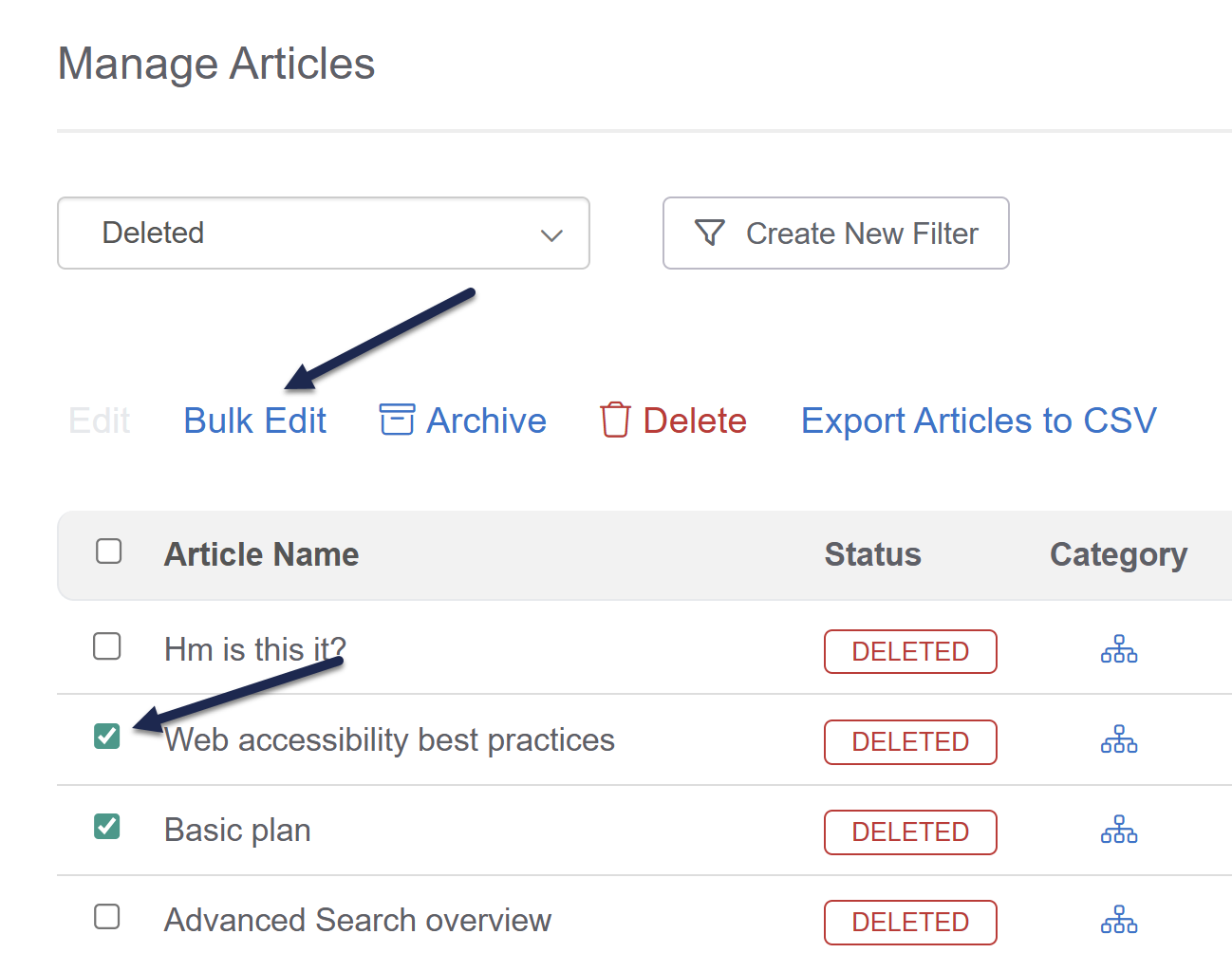
The Bulk Edit Articles modal opens. - Set the Publishing Status to whatever status you'd prefer (such as Draft, Published, etc.). Make any other changes you'd like, such as changing the Author, adding tags, and more. Refer to Bulk edit articles in Manage for more information on the available options.
- Once you've finished making your bulk edit selections, select Update Articles:
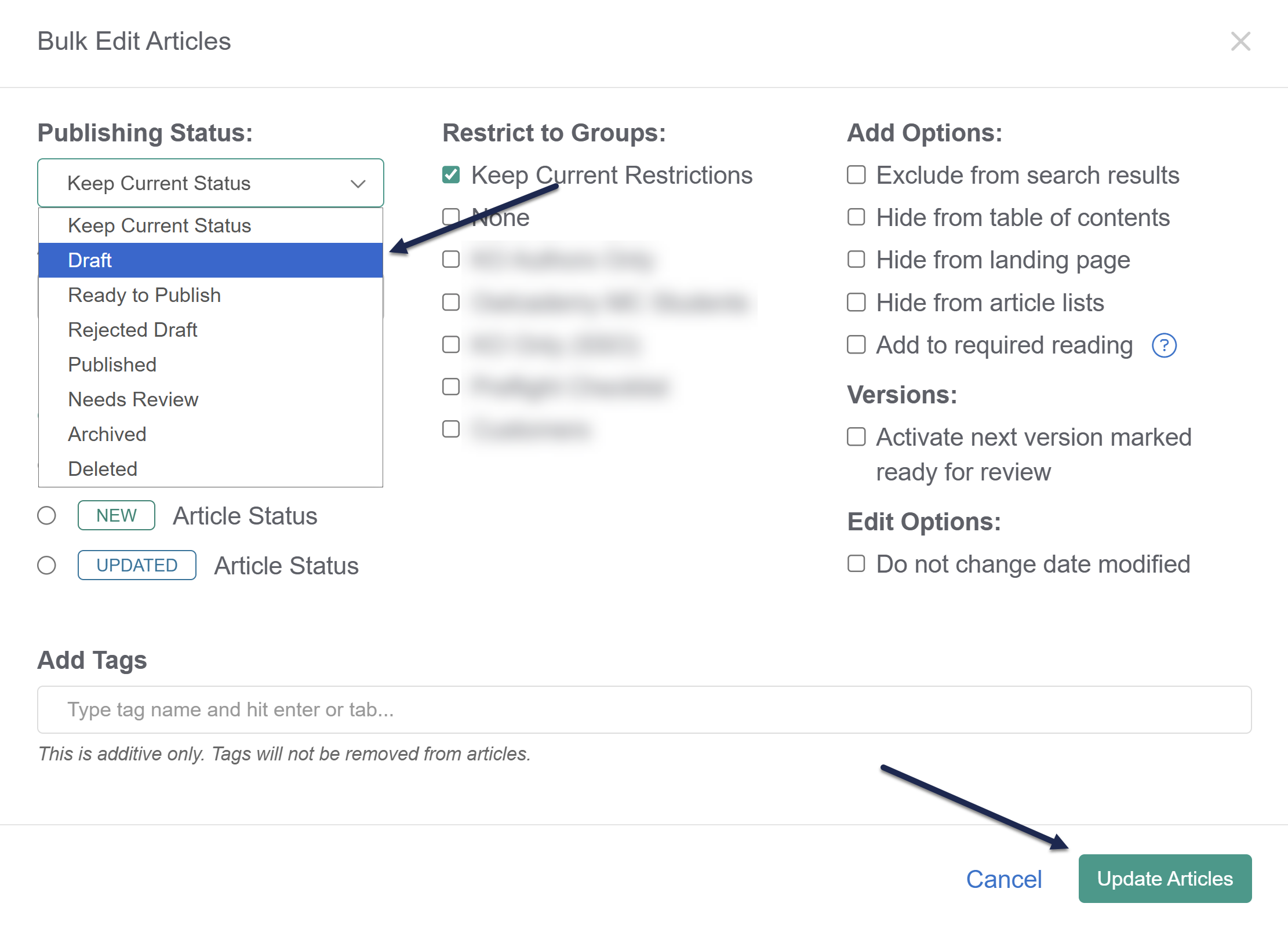
- If you're editing a small number, the edit should complete promptly. If you're editing a large volume of articles, a bulk edit progress bar appears. The text with that bar will tell you when it's done. Either way, the Manage filters will update to no longer show the articles as Deleted.
- If you set up any Old Link redirects when you deleted the articles, you'll also need to remove those.
- If you can't remember where you used them, go to the All Non-Deleted filter in Manage and Export the Manage Articles list to CSV. Be sure to include the Old links column in your export.
- Then search the CSV for the permalink of the articles you recovered. You'll need to edit articles that have that permalink in their Old links field to remove the old link.
