
Automatic payments
Automatic, recurring payment options work for both monthly and yearly subscriptions. For this payment type, save your payment details in KnowledgeOwl and we'll automatically charge that method when your next payment is due.
To pay for your subscription automatically, choose one of these payment options:
- Credit card
- Amazon Pay
- PayPal
- Google Pay
Invoice
If you have a yearly or multiyear subscription at the Business or Enterprise plans, you can choose to pay by invoice, which may include payments by credit card, bank transfer, wire transfer, check, or more.
Switching payment options
Contact us to switch between automatic payments and invoicing.
We offer two general types of discounts:
- Time-based discounts: Save money by buying a yearly, 2-year-, or 3-year subscription
- KO for Good discounts: For non-profits, B corporations, and purpose-driven organizations. The discount amount starts at 25% and goes up based on your subscription time period.
Time-based subscription discounts
The following discounts are available for subscriptions:
- 10% off with yearly subscription/payment
- 15% off with 2-year subscription/payment
- 20% off with 3-year subscription/payment
Yearly discount
We default all new subscriptions to a yearly plan to save you money.
Check your plan in Account > Billing. If Your Subscription lists a plan with "monthly" after it, select the Edit link below your plan and update your Billing frequency to Yearly.
Refer to Switch from monthly to yearly subscription for more detailed instructions on making this change.
Multiyear discounts
To receive the 2-year or 3-year subscription discount, please contact us. You can still pay in-app but we need to set things up properly on our end!
KO for Good discounts
We offer these discounts for non-profits, B corporations, and purpose-driven organizations:
- 25% for monthly or yearly subscriptions
- 30% for 2-year subscriptions
- 35% for 3-year subscriptions
KO for Good monthly or yearly discount
To get the 25% KO for Good monthly or yearly discount:
- Go to Account > Billing.
- Select the Edit link in any of the sections. The Edit your subscription page opens.
- Near the bottom of the page, check the box next to this statement: We are a nonprofit, B Corp, or other purpose-driven org and qualify for the 25% KO for Good discount.
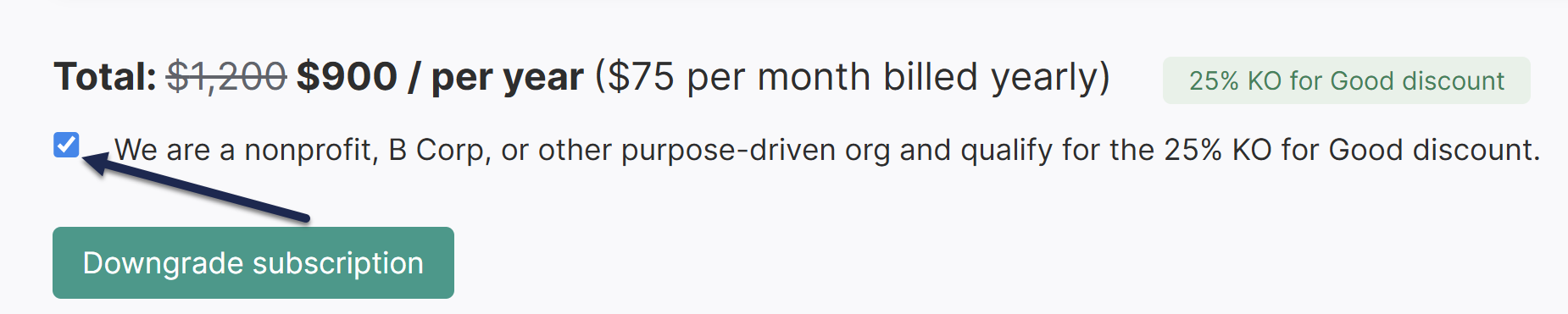 Image Caption
Your Total and the discount badge next to it update. - Select Downgrade subscription to save those changes.
If you've already paid us for your subscription, we'll refund the prorated amount for the remainder of your current subscription.
KO for Good multiyear discounts
To receive the KO for Good 2-year or 3-year subscription discount, please contact us. You can still pay in-app but we need to set things up properly on our end!
Invoice payments
Business and Enterprise subscribers can pay for KnowledgeOwl by invoice rather than in-app credit card. We automatically apply the 10% discount to your annual invoice.
Let us know if you qualify for the KO for Good 25% discount or are interested in any of the multiyear discounts.
You can update your payment method or credit card details at any time.
Authors with Full Account Admin permission can update payment details. If you don't have access to Account > Billing, you don't have permission to make these changes.
To make the change:
- Go to Account > Billing.
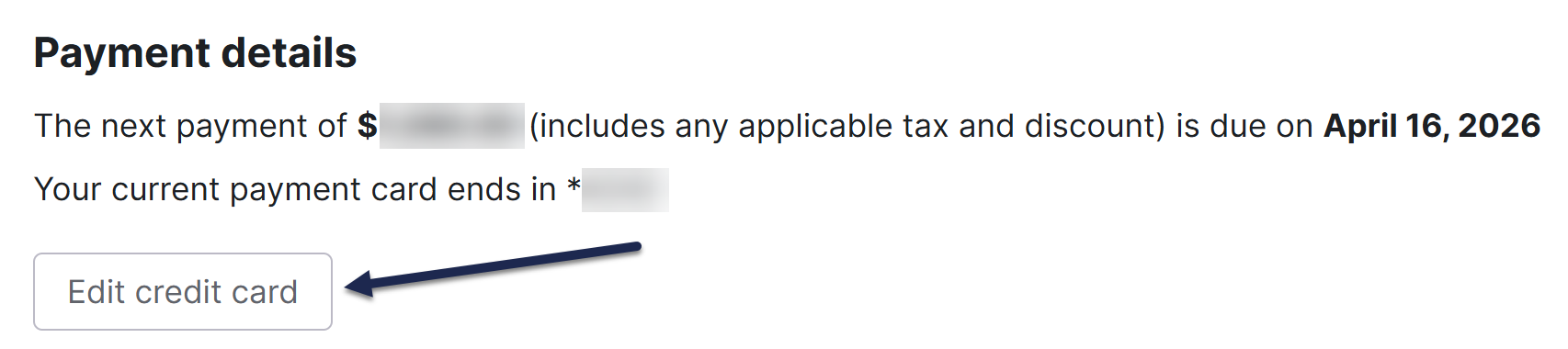
- In the Payment details section, select Edit credit card:
The Manage Payment Method modal opens. - Choose the option that best fits your scenario:
- To update your existing payment method, select Edit next to that method.
- To add a new credit card, PayPal, Google Pay, or Amazon Pay, select + New Payment Method.
- Follow the instructions in the modal.
We'll only charge your payment method if you have an outstanding balance due from a previous failed payment. We'll charge the new payment method for all payments moving forward.
Payment receipts are sent by email to your account's billing email address. Refer to Change my billing email address if you need to update that email address.
Please contact us if you need us to re-send previous payment receipts.
KnowledgeOwl uses a Merchant of Record for our billing. They collect and remit taxes internationally. So even if you're based in a non-US country like Canada, your payment will include sales tax.
When you check out and enter your payment information, use the dropdown in the upper right to choose your location: 
Your currency and tax rate will update based on the location you select.
For countries like Canada, with varying tax rates/types across the country, the rate also updates when you enter your postal code, to reflect your province or territory's rates.
Under the total, add your company's tax ID number to be sure your tax payment is remitted properly. For Canada, it requests a GST number, which acts as a stand-in for HST, GST, PST or QST, since each province and territory has a different sales tax setup.
If you need our Merchant of Record's tax ID for your records, find the ID correlating to your country or region here.
Our merchant of record automatically emails payment receipts to your Billing email address. When you signed up for a trial, we copied that email address in as your default billing email address, but you can update this email address at any time.
Authors with Full Account Admin permission can update the billing email. If you don't have access to Account > Billing, you don't have permission to make these changes.
To update your billing email address:
- Go to Account > Billing.
- In the Billing details section, edit the Billing email.
- Select Update.
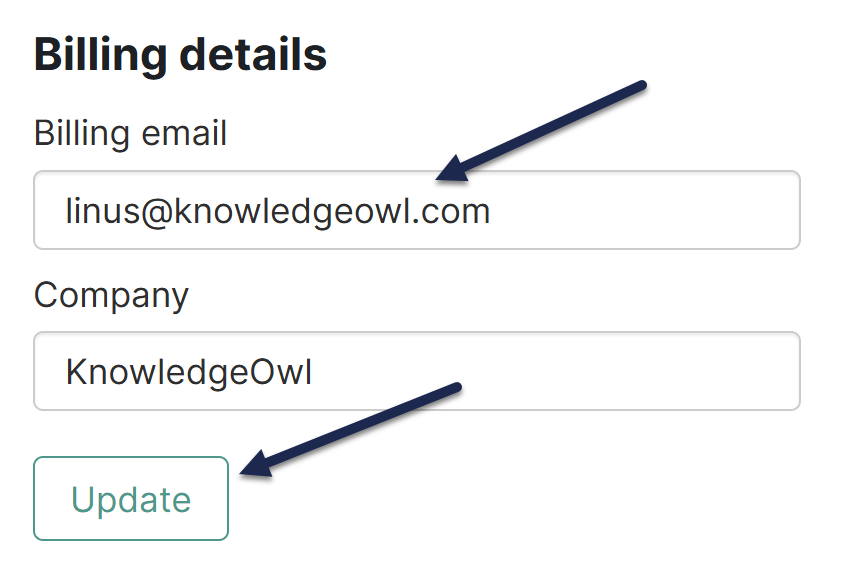 Edit the Billing email and select Update
All future billing emails will be sent to this address. Older receipts can be re-sent upon request.
If you miss an invoiced payment or our automatic processing of your renewal fails, we'll continue to try to process the payment and/or reach out to you, as outlined in the Initial failed payment steps outlined below. If we continue to not receive payment after that initial outreach, we'll slowly lock down authoring and reader access to your knowledge base, outlined in the Continued non-payment section below.
Initial failed payment
If your payment fails, we'll take the following steps:
- We attempt to process the payment multiple times during the first month.
- We send automatic notifications about the payment issue to the billing email address on file. Refer to Change my billing email address if you need to update that email address.
- If the problem persists, our team reaches out directly.
- If we don't hear back from you, we'll proceed with the Continued non-payment steps outlined below.
Continued non-payment
For continued non-payment, we take more advanced steps.
- We'll mark your account as Overdue within 30 days of non-payment, particularly if we haven't heard from you to resolve the situation. Overdue accounts display a banner within KnowledgeOwl to alert your authors about the payment issue, but all other authoring functionality works. Your live knowledge base is unaffected.
- If we pass the 30 days of non-payment and we aren't receiving communication from you to resolve it, we'll mark your account as In arrears. This prevents your authors from doing anything in app.knowledgeowl.com other than updating your billing and payment information. Your live knowledge base is unaffected.
- If your account goes past 60 days overdue, especially if we haven't received response to our communication efforts, we'll mark your account as Suspended. This locks down the back-end as with the In arrears status and also suspends your live knowledge base. Readers won't be able to access any of your content.
- If we still receive no payment and no communication, we'll cancel your account. We take this only as a measure of last resort, usually due to complete lack of response or resolution on your part.
Our top priority is to work with you to resolve any payment issues and ensure uninterrupted service. We only use the continued non-payment steps in cases of extremely overdue payments.
Learn more about the Overdue, In arrears, and Suspended statuses below.
Overdue
When an account is marked as Overdue, a red notification dot displays over the notification bell in the top navigation for all authors:

Select that bell icon to display the full alert about the account being overdue:
 Sample overdue account banner
If you receive this notification, we haven't received your payment when it was due. Most likely this means that when we tried to process your credit card payment, it failed.
Informational warning only
Your knowledge base is still live and accessible when you see this message. It's just a warning that your payment is overdue.
How you resolve this depends on whether you pay by credit card in Account > Billing or by invoice.
To resolve an overdue credit card payment:
- Open the link in the banner or go to Account > Billing.
- Review the Payment details we have on file. Specifically, please confirm:
- The credit card has not expired (update to a new credit card if it has)
- The card number, expiration date, and CVV are correct
- The billing zip code is correct
- If all of these are correct, please contact us so that our billing team can help sort out why the payments are failing.
- If anything is incorrect, select Edit credit card to make changes. Refer to Update payment method for more detailed instructions.
- Once you update your credit card, we'll remove the overdue notice once the payment has processed.
To resolve an overdue invoice, please contact us so that our billing team can help.
In arrears
The In arrears status is used when an account is considerably past due. This is our big warning before we suspend your knowledge base.
In this status, all authors will only be able to access Account > Billing; all other pages will be disabled with an account past due modal:
 Sample in arrears message
Your knowledge base will still be live and accessible to your readers, but your authors are prevented from making any changes to it until we receive payment.
To resolve issues with your payment and regain author access to app.knowledgeowl.com, please contact us for all payment arrangements.
Suspended
We move your knowledge base(s) into Suspended status when your account is over 60 days past due and we haven't received word from you after marking it In arrears. This is the final step we take before canceling your account due to non-payment.
In this status, all authors will only be able to access Account > Billing, as with In arrears, AND readers won't be able to access your live knowledge base.
Suspended account = Knowledge base offline
Your knowledge base won't be accessible by your readers once we suspend your account. If they try to open any page on your knowledge base, they'll be presented with a message like this: "We're sorry! This knowledge base is temporarily offline. If you're seeing this message, we recommend reaching out to the organization who owns it via their official website or support channels."