
All articles have a status, which determines whether the article is viewable in your live knowledge base.
Change the publishing status using the Publishing Status dropdown and then saving the article:
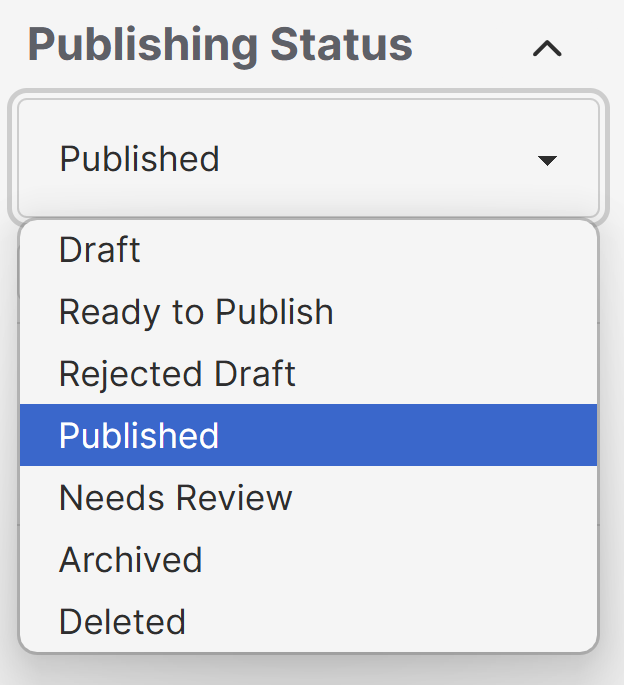 The Publishing Status dropdown
The seven statuses available are:
- Draft (default status for newly created articles)
- Ready to Publish
- Rejected Draft
- Published
- Needs Review
- Archived
- Deleted
Refer to the more detailed sections below on what each status means.
Draft
An article in Draft status is not visible to readers. This is the default status when you create a new article.
Ready to Publish | Rejected Draft
The Ready to Publish and Rejected Draft statuses are optional draft statuses, supporting your documentation editing and review workflow. Both of these statuses keep the article hidden from readers, like a Draft.
As an example, some articles need to be approved before being published. You can switch the status to Ready to Publish once it is ready for approval. The approver then reviews the article, and either changes the status to Published if approved, or switches it to Rejected Draft if it still needs work.
Published
A Published article is visible in your live knowledge base. If the article is restricted to specific Reader Groups, it will only be visible to readers who belong to those groups; otherwise, it is visible to anyone who has access to your knowledge base.
Needs Review
A Needs Review article is an optional Published status. Needs Review articles are still visible in your knowledge base, but you can use the status as a way to identify articles that need to be reviewed to be sure they're up to date, accurate, etc.
You can view all articles with the Needs Review status in Manage. This status is a great way of keeping your knowledge base up to date and relevant. You can regularly check for articles that require review, update them if necessary, and switch them back to Published status.
To set an article to Needs Review:
- Manually set an article's status to Needs Review as a reminder to review it.
- Configure your knowledge base to automatically switch published articles to Needs Review if the article hasn't been updated within a specified period of time. To do so:
- Go to KB settings > Article editor.
- Under Article review, check the box to Automatically set articles to "Needs Review" if older than the below date.
- Use the dropdowns to select the time period. For example, select "6" in the first dropdown, and "Months" in the second, to set the time period to six months.
- Be sure to Save your changes.
Refer to Article editor settings for more information on these settings.
Archived
Archived articles are not visible in your knowledge base. You can access them by navigating to Manage > Archived. Refer to Recover a deleted or archived article if you need to recover an article that is currently archived.
Most authors use Archived differently from Deleted, generally to show that something was at one time published/active in the knowledge base and isn't anymore.
When you archive an article from within the Article Editor, you have the option to automatically redirect anyone hitting the archived article's URL to a different URL instead:
 Sample Archived status redirect to another article
Check the box and then search for the article you'd like your readers to be redirected to. (If you don't do this, they'll likely just get a 404 page instead.)
Sample Archived status redirect to another article
Check the box and then search for the article you'd like your readers to be redirected to. (If you don't do this, they'll likely just get a 404 page instead.)
Deleted
Deleted articles are not visible in your knowledge base. You can only access them by navigating to Manage > Deleted. Refer to Recover a deleted article if you need to recover an article that was incorrectly deleted!
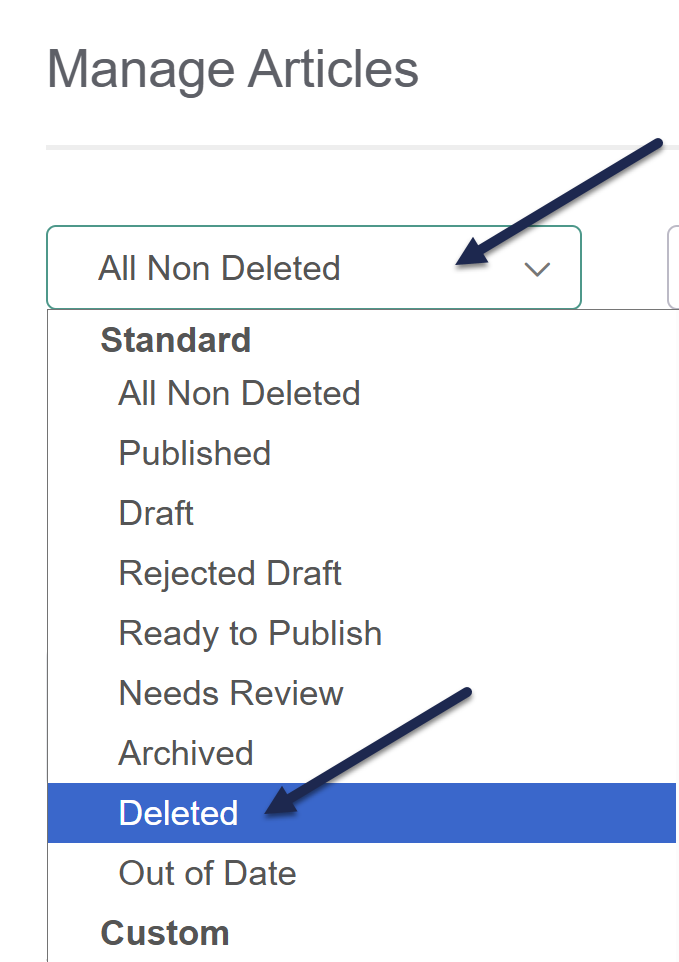 Open the Deleted filter in Manage.
As with archiving, when you delete an article from within the Article Editor, you have the option to automatically redirect anyone hitting the deleted article's URL to a different URL instead:
 Sample Archived status redirect to another article
Check the box and then search for the article you'd like your readers to be redirected to. (If you don't do this, they'll likely just get a 404 page instead.)
Sample Archived status redirect to another article
Check the box and then search for the article you'd like your readers to be redirected to. (If you don't do this, they'll likely just get a 404 page instead.)