
Authors can request a password reset email on the KnowledgeOwl login page.
Reset my own password
To reset your own password when you're not logged in to KnowledgeOwl, select the Forgot your password? link on the KnowledgeOwl login page.
To reset your own password when you're logged in to KnowledgeOwl:
- Select your name in the upper right corner.
- Select Change password.
- Follow the prompts.
Reset another author's password
Authors with Full Admin access can also reset passwords for other authors. To do so:
- Go to Account > Authors.
- Select the author whose password you'd like to reset. The Edit Author page opens.
- Under Login Type, select Reset Password:
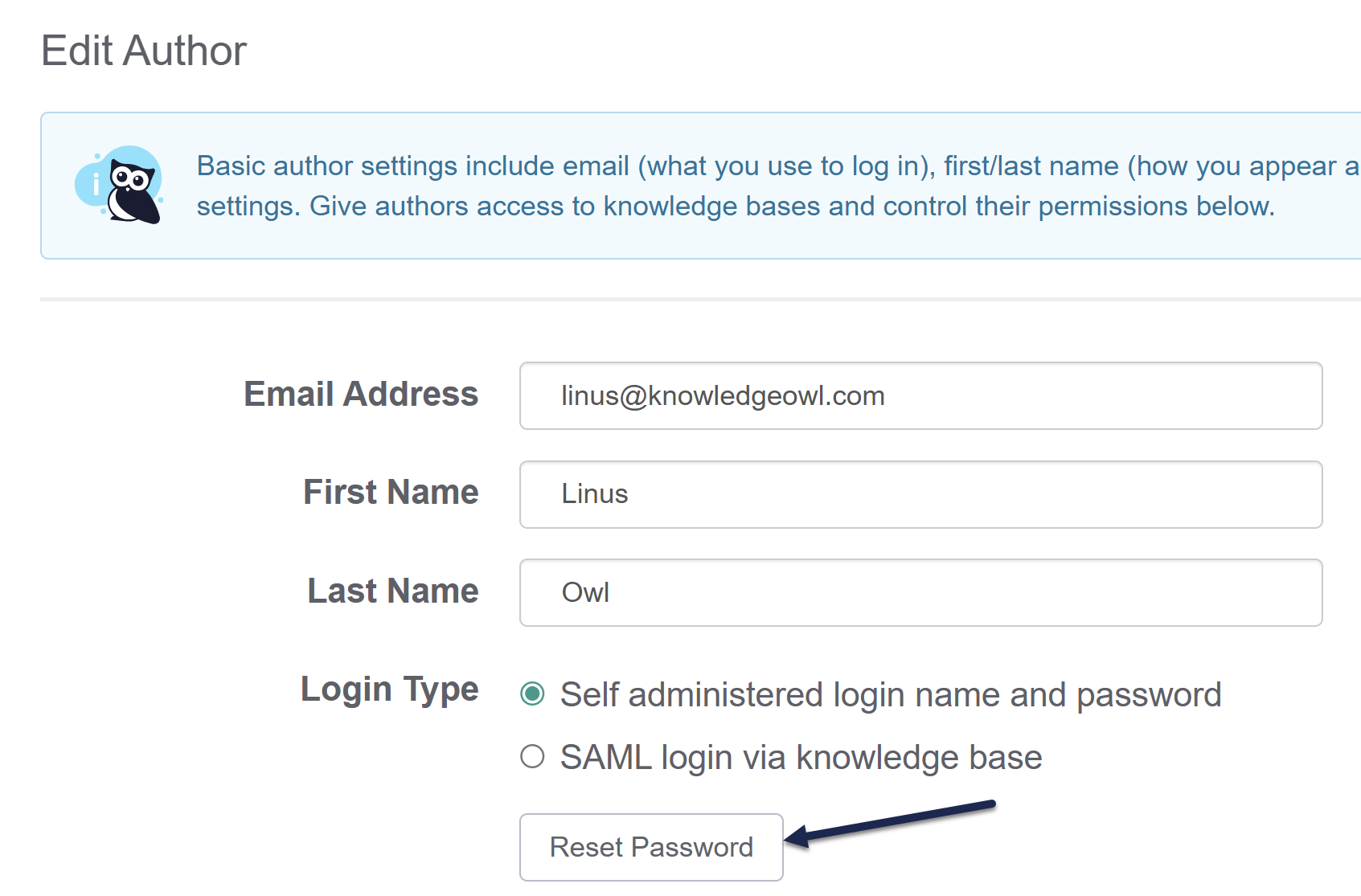 Under Login Type, select Reset Password.
 - The Reset Author Password modal opens:
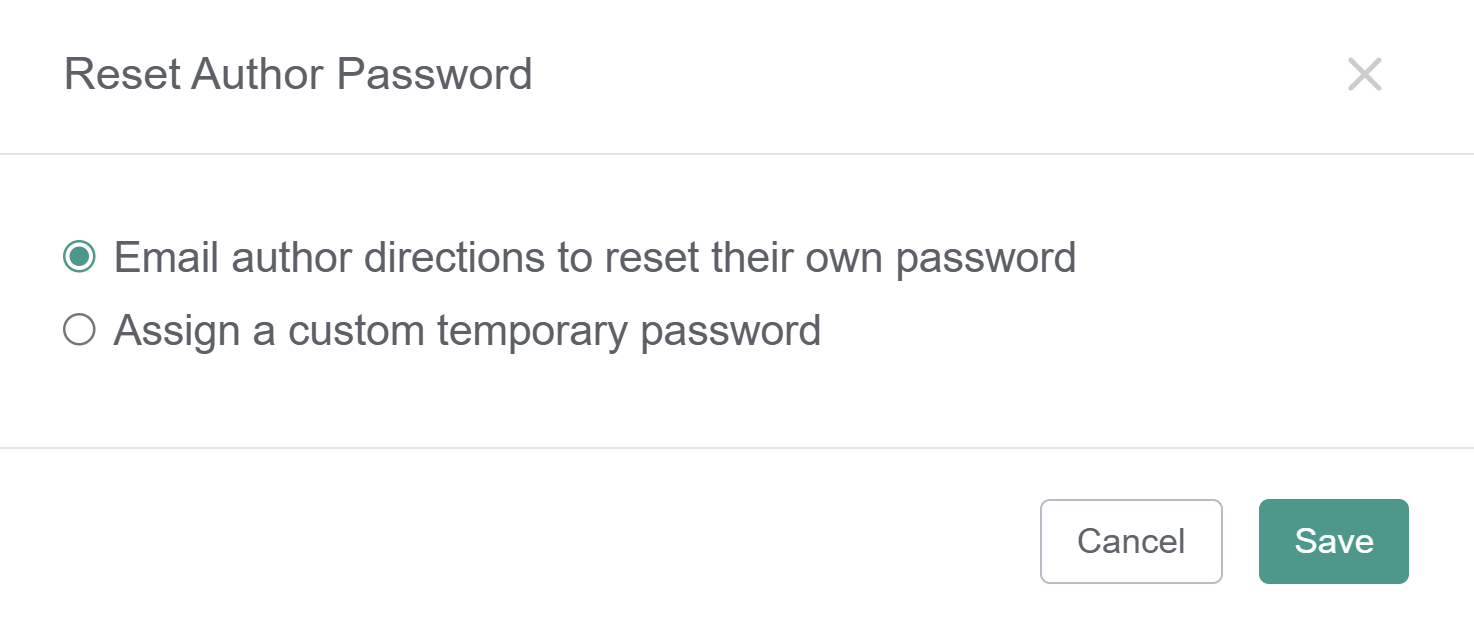 The Reset Author Password modal
 - Choose from the two reset author password options:
- Email author directions to reset their own password: KnowledgeOwl emails the author with a one-time link. The author opens this link to log in and reset their own password. This option works well if you want the author to be automatically notified of the password reset.
- Assign a custom temporary password: You'll enter a Temporary Password for the author. The author can log in once using this temporary password and will be prompted to change their password once they do. This option works well if you'd like to test the reset yourself to troubleshoot login issues or if you want to notify the author of the temp password yourself directly.
- Once you've selected the password reset option you'd like to use (and, if applicable, entered a Temporary Password), select Save to finalize the password reset.
- If you chose Assign a custom temporary password, notify the author of the new temporary password. If you chose Email author directions to reset their own password, no further action is needed.
When the author logs in with the reset link or the temporary password, they'll be prompted to update their password.