
If you or one of your teams has already been using Document360 as a knowledge base solution, you may have a lot of content there you'd like to move over to KnowledgeOwl. You can import that content from Document360 directly into your KnowledgeOwl knowledge base with a few clicks.
Before you begin
Before you can import content into KnowledgeOwl, generate a Document360 API token with GET permissions.
Refer to the Document360 API docs' Generating a new token for instructions on creating a new API token.
Copy the API token and have it ready.
KB workspace imports only
Our importer only imports KB workspaces, not API Reference workspaces.
Import your content from Document360
Follow these steps to import from Document360:
- In KnowledgeOwl, go to Tools > Imports. The Import content page opens.
- Under Third-party imports, select Document360. The Import Document360 content page opens:
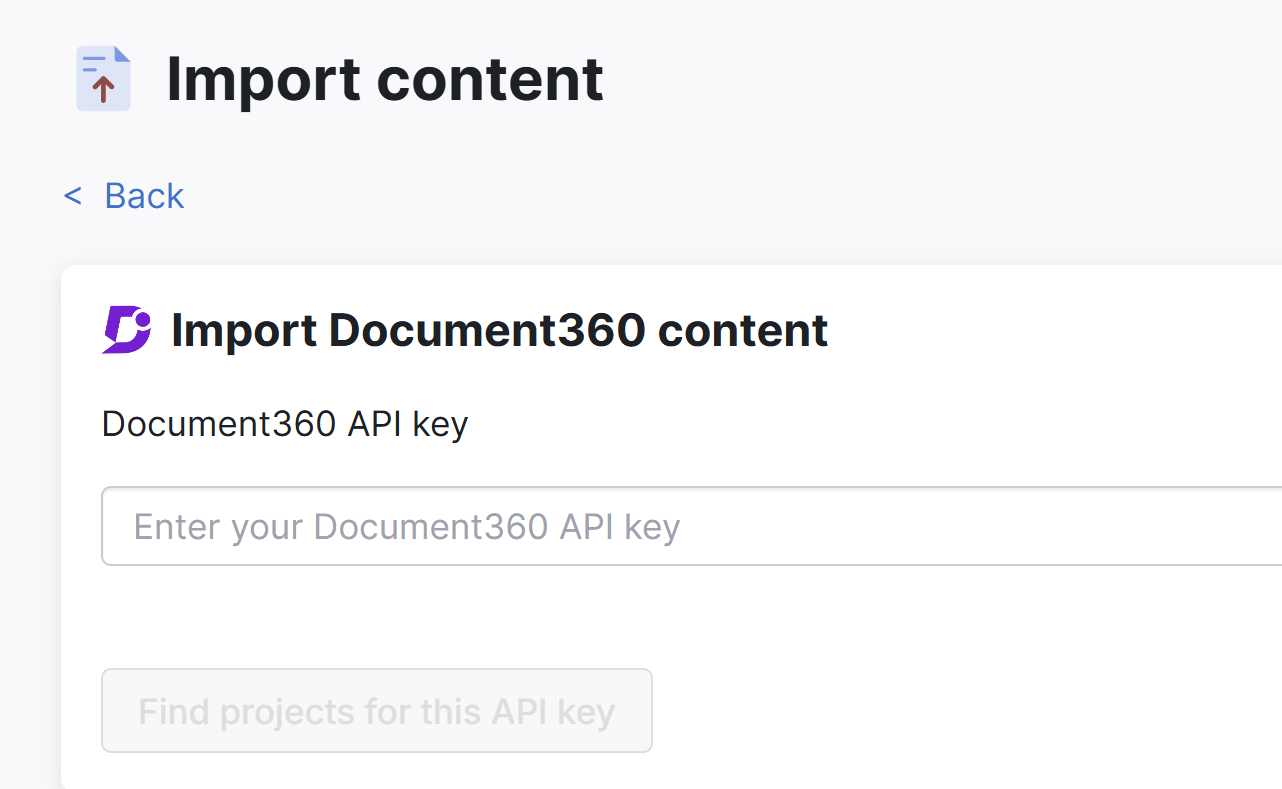 The Import Document360 content page
 - Paste your Document360 API token into the Document360 API key field.
- Once you enter your key, select Find projects for this API key. The page updates to display available project versions and additional steps.
- If you have more than one Document360 project version available, select the project version you wish to import.
- If you don't make any changes, your Document360 content will be imported using these settings:
- Content hierarchy begins at the top-level.
- To import your Document360 content into a specific category, use the Select import destination setting. Once you select Existing category, start entering the name of a category. The field will autosuggest. Select the category you want to import all content into.
- All articles set to Published status.
- To import your articles with any status other than Published, select the publishing status you wish from Select article status.
- All images imported and hosted in KnowledgeOwl.
- If you don't want us to import your images into KnowledgeOwl, change the Images settings to Keep existing URLs.
Import images
Only use Keep existing URLs if you have a deeply compelling reason (such as just running a quick test now and you intend to delete the content and do a more formal import later). Keep existing URLs will keep all of your images in your original source system. If that system is deleted or cancelled, all of the images in your documentation would disappear. 😱
- If you don't want us to import your images into KnowledgeOwl, change the Images settings to Keep existing URLs.
- Content hierarchy begins at the top-level.
- If you'd like to add a tag to identify all the articles created from this import, enter that tag name in Tag all imported articles with this tag name (optional).
- We strongly recommend this approach if you're importing content alongside manually-created content, so you can easily filter to these articles in Manage!
- Select Import content to begin the import.
- A progress bar displays while we handle the import. Document360 rate limits their API, so large knowledge bases can take a while to import. You're welcome to navigate away and let the import run in the background. The import works through these statuses:
- import queue
- importing document tree
- All done!
Once the "All done!" message displays, your import is complete.
If you're testing the import in a new knowledge base and want to make changes and try to re-import, delete this knowledge base and create a new knowledge base to re-test the import. Refer to Testing imports for more details.
How the Document360 import works
Document360 and KnowledgeOwl are formatted and architected fairly similarly, but the importer can't handle all of Document360's configurations exactly.
Imported content
Here's the content we import and how we import it:
- Categories
- Pages: Content imported but we don't import the publishing statuses; the publishing statuses are all set to the Select article status you selected during the import. Document360 and KnowledgeOwl HTML look very similar, so we try to import this HTML directly. We only strip out in-line styles, since they may conflict with how KnowledgeOwl styles work. Replicated articles are turned into shared content articles.
- Snippets
- Tags
- Variables: KnowledgeOwl doesn't distinguish between variables and snippets, so we import these as snippets with a
variable_prefix in the name to avoid naming conflicts. We update all your articles to reference the new snippet merge code. - Authors: We map Document360 author email addresses to KnowledgeOwl author email addresses. As long as the author exists in KnowledgeOwl, we'll import the author. If we can't import the author, we leave the author blank.
Import limitations
The Document360 import currently doesn't import the following:
- Categories:
- Icons
- Whether or not to display top-level categories on the homepage
- Creator ID (KnowledgeOwl doesn't track category creator)
- Pages:
- Related articles
- Authors who don't exist in KnowledgeOwl: We recommend using the Manage Bulk edit functionality to add authors to articles who lack authors. Refer to Bulk edit articles in Manage for more information.
- Restricted content blocks within articles: KnowledgeOwl doesn't have an exact feature for this, so the content is imported unrestricted.
We're adding more coverage to this importer based on customer requests, so if you've tried the importer and you're missing some of the features above (or others), contact us so we can explore if we can add the options you need!