
To stop syncing content between a parent and child article, you'll need to remove the syncing relationship. This sets the child article up as a standalone article. The child will keep the current active version but lose the version history of previous versions the parent has.
The information below varies based on whether you're using our 2026 new editor or old editor.
To figure out which instructions to follow:
- Open any article for editing.
- If the lefthand navigation is collapsed and there's a link near the top of the page to Switch to old editor, follow the New editor documentation.
- If the lefthand navigation is expanded and the top of the editor and the righthand column have a heavier grey background, follow the Old editor documentation.
Here are side-by-side examples of the new editor and the old editor:
 Sample New editor
 Sample Old editor
Try out the new editor
We'd love your feedback on the new editor. To switch to the new editor, open any article for editing and select the Switch to new editor link at the top of the editor.
In the new article editor, you can stop sharing in two ways:
- Stop syncing from child article: If multiple synced children are associated with a parent, stop syncing from a child article to only stop syncing this one article. All other children remain synced to the parent.
- Stop syncing from parent article: If multiple synced children are associated with a parent, stop syncing from the parent to stop syncing to all children.
If you only have a single synced child associated with the parent, you can use either method
Stop syncing from the child article
To stop syncing from a child article in the new article editor:
- Open the child article for editing.
- Select the Stop sharing content link in the child synced content message near the top of the editor:
 Select the Stop sharing content link in the child synced content message.
 - The Stop syncing content modal opens to confirm you want to continue. You won't be able to undo or re-establish the syncing relationship, so be sure you've opened the correct article.
- Select Stop syncing to break the syncing relationship between this child and its parent article.

The Article unlinked successfully message displays to confirm the change.
Your child article will now function as a standalone article. If this was the only child synced to the parent, it will also now function as a standalone article.
Stop syncing from the parent article
If you want to unlink ALL child articles from the parent, stop syncing from the parent article in the new article editor:
- Open the parent article for editing.
- Select the Stop sharing content link in the parent synced content message near the top of the editor:
 Select the Stop sharing content link in the parent synced content message.
 - The Stop syncing all child articles modal opens to confirm you want to continue. Stopping syncing from the parent removes the syncing relationship between the parent and all of its child articles. These relationships can't be recovered. If you only want to remove a single child article relationship, select Cancel in this modal and follow the instructions to Stop syncing from the child article instead.
- Select Stop syncing to break the syncing relationship between this parent and all of its synced children articles.

The Article unlinked successfully message displays to confirm the change.
All of your child articles as well as this parent article will now function as standalone articles.
In the old article editor, you'll need to stop sharing from the child article:
- Open the child article in edit mode.
- Select the Stop sharing this content link in the synced content warning.
- This will open a confirmation pop-up:
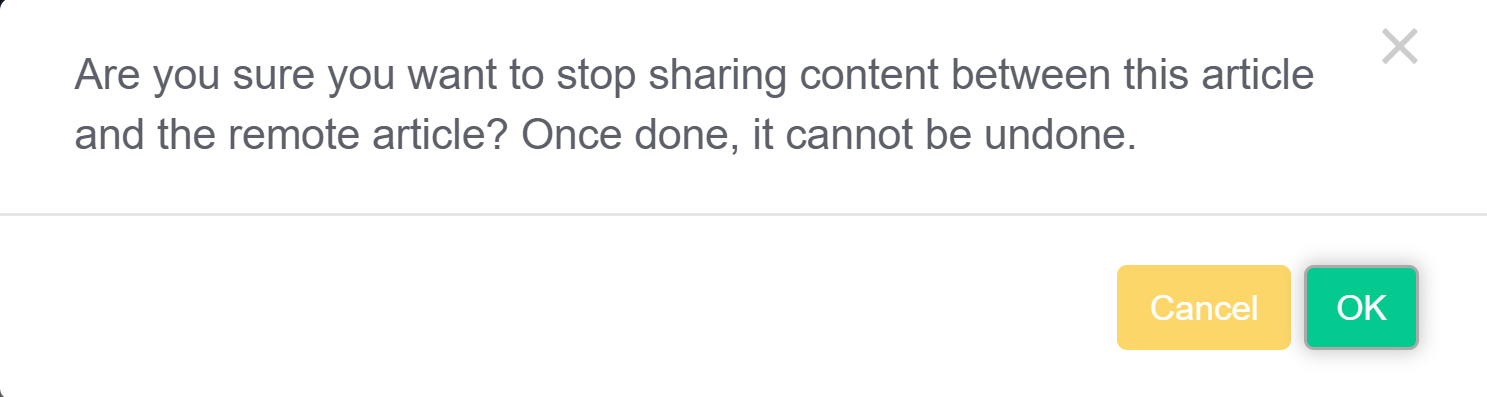 Unlink confirmation pop-up
 - Select OK in the pop-up to stop sharing the content.
The editor page will refresh; the child article is now independent of the parent!
What happens when you stop syncing
When you stop syncing, the parent and child article(s) won't share their content or versions and they won't have the warnings in the editor linking to the other synced article(s). Updates to one will no longer impact the other.
The child article(s):
- Will lose all versions except the current active one
- Won't have any revision history. The article body at the moment you stop sharing is considered the first edit to the article.