
Sometimes URL redirects have run their course and you want to convert them to a "regular" article with real content.
The information below varies based on whether you're using our 2026 new editor or old editor.
To figure out which instructions to follow:
- Open any article for editing.
- If the lefthand navigation is collapsed and there's a link near the top of the page to Switch to old editor, follow the New editor documentation.
- If the lefthand navigation is expanded and the top of the editor and the righthand column have a heavier grey background, follow the Old editor documentation.
Here are side-by-side examples of the new editor and the old editor:
 Sample New editor
 Sample Old editor
Try out the new editor
We'd love your feedback on the new editor. To switch to the new editor, open any article for editing and select the Switch to new editor link at the top of the editor.
Convert URL redirect article in new article editor
To convert an existing URL redirect article back to a "regular" article in the new article editor:
- Open the article for editing.
- Hover over the Permalink section and select the triple dot menu that appears there:

- Select Remove redirect from the menu that appears:
 Select Remove redirect
 - Be sure to add the actual content you want your article to contain into the editor!


Convert URL redirect article in old article editor
To convert an existing URL redirect article back to a "regular" article in the old article editor:
- Open the article in the editor.
- In the URL Redirect section of the righthand menu of the article editor, uncheck the box to Redirect this article to a different URL.
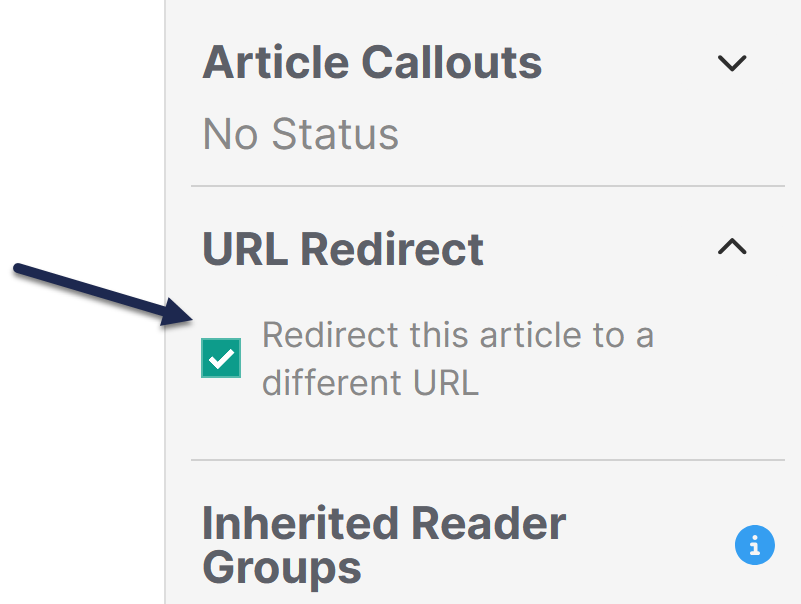 The URL Redirect section is located between Article Callouts and Inherited Reader Groups
 - This removes the Redirect URL section from the editor.
- Be sure to add the actual content you want your article to contain into the editor!
- Save your article.
