
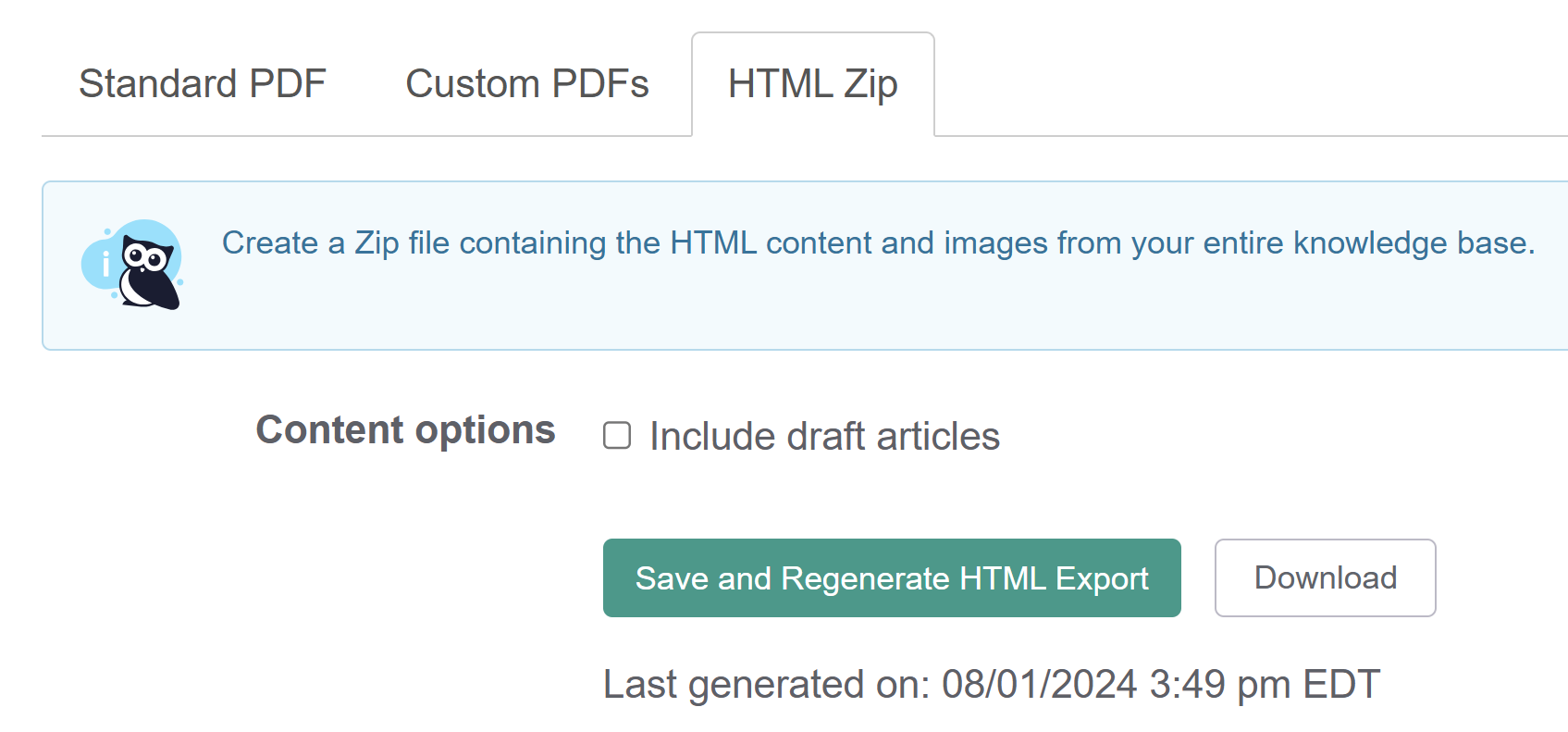
 The HTML Zip export page
The HTML Zip export creates a zip file containing files for each of your articles and folders for each category/subcategory.
The export also includes a files folder at each level and sometimes a videos folder, which contain all the image or video files uploaded to your Files and referenced in your articles. The articles linked to those images or videos will update to that path (files/file-name or videos/file-name) rather than the URL used in your Files storage.
Use the Content options to include articles with a draft publishing status.
You can use this zip export for:
- Back-ups (for redundancy, piece of mind, or audits)
- Exporting your content for import into another tool/platform
Refer to Generate an HTML Zip export for detailed instructions on generating an HTML zip export.
Regenerate and download an updated HTML zip file at any time. You can also download a previously-generated export without generating a new one.
To create an HTML Zip export of your knowledge base:
- Go to Tools > Exports. The Exports page opens to the Standard PDF tab.
- Open the HTML Zip tab.
- By default, exports will not include draft articles. If you'd like to include draft articles, check the Content options box to Include draft articles.
- Select Save and Regenerate HTML Export to generate a new HTML export. The page updates to display a progress bar.
- HTML Zip exports can take some time, depending on how large your knowledge base is. Feel free to navigate away from this page while it generates. The progress bar message will keep you updated where it's at in the process:
- HTML export queued
- exporting xxx articles to HTML
- generating zip file
- uploading zip file to server
- Once generation is complete, a success message appears.
- As the message instructs, select Download to download the zip export file. Visit this page at any time to download an already-existing export or generate a new one each time.
- The Last generated on statement will show you the timestamp of the last generated export.
If you're accessing your HTML zip export on a Windows machine, you may notice missing categories or subcategories. This happens if your categories or subcategories have a question mark in the title.
Why?
Windows does not allow folders to have question marks in them. It doesn't care where those folders come from. It doesn't handle them.
If you use Windows built-in unzip/extract tool and Windows Explorer to interact with your unzipped content, you won't see categories or subcategories with question marks in the title.
Don't worry, though! The categories and subcategories are there and were properly exported. Windows is just hiding them from you because it can't handle question marks.
How to display question mark titles in Windows
For Windows users, there are two ways to bypass this issue:
Change the category name before export
Rename your categories to remove the question marks before you generate the HTML zip export.
This works, but obviously there may be reasons you don't want to do that.
Use a different unzipping tool
Use an unzipping tool or file explorer that can handle the question marks.
We've had great luck with 7zip, which is a free, open-source solution.
When 7zip extracts the files from a zipped folder, it replaces any question marks with underscores. This makes them fully available in Windows Explorer.
So if my original category was "How can I get help?", once I've unzipped the export in 7zip, it shows up as "How can I get help_":
 Sample HTML zip export unzipped with 7zip
You can also use 7zip's browser to browse the unzipped .zip file, which will show you the original category title with the question mark:
 7zip navigation into .zip file shows the question mark