
New or trial accounts
If you have a new or trial account without much content or customizations, you can test imports without worry. If something goes wrong or you want to try again, delete the current knowledge base and create a new one.
To delete your knowledge base and start over:
- Select the owl in the top left to go to your dashboard.
- Select the gear icon next to your knowledge base's name.
- Select Delete.
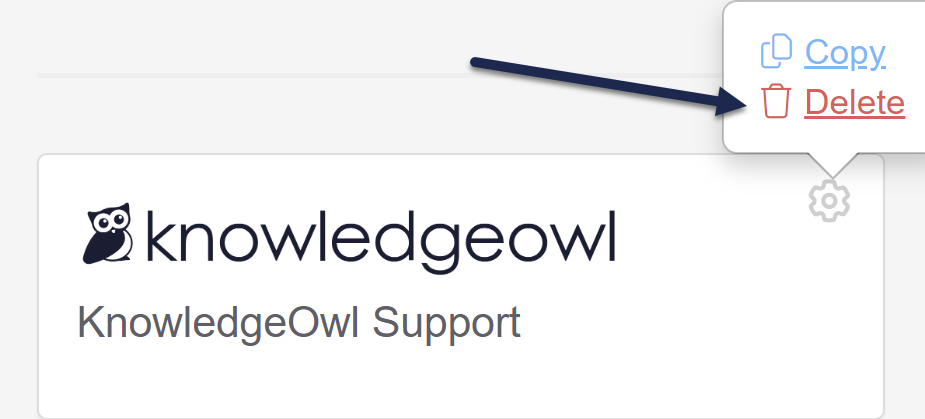 Select the gear cog icon and select Delete.
A modal opens to confirm you want to delete the knowledge base. - Once you've confirmed the name displayed in the modal is the knowledge base you planned to delete, select OK to complete the deletion.
If you only have one knowledge base, this will restart the setup process for a new knowledge base. If you have multiple knowledge base slots on your account, select + New Knowledge Base to create a new knowledge base.
Refer to Create an additional knowledge base for more information on adding a new knowledge base.
Existing accounts
If you already have an account with a knowledge base set up, you might not want to test an import in your production knowledge base. Here are a few options for testing imports outside of production:
- If you have additional knowledge base slots in your subscription, create a new knowledge base to test the import.
- If you don't have additional knowledge base slots, add more to your subscriptions under your Account > Billing.
- If you want a temporary knowledge base for testing, contact us so we can set you up with a complimentary sandbox knowledge base.