
An article's Published date indicates when the article was first published. Some authors also update the published date when they publish significant changes, but this is entirely up to you.
Published Date allows you to specify the date that an article was published. This can be helpful:
- For compliance or audit purposes
- For blog style category displays
Historically, the Published date was an optional setting, but the new article editor released in 2026 automatically sets the Published date the first time you set an article to have a Published status. You can override or remove this if you'd like.
The published date is displayed:
- Within articles displayed in blog style categories
- In ManageCSV exports when the Date Published box is checked
- Anywhere the Article Date Published merge code is used:
[article("date_published")]
The Published date is automatically set if you use the Schedule an article to be published feature.
The information below varies based on whether you're using our 2026 new editor or old editor.
To figure out which instructions to follow:
- Open any article for editing.
- If the lefthand navigation is collapsed and there's a link near the top of the page to Switch to old editor, follow the New editor documentation.
- If the lefthand navigation is expanded and the top of the editor and the righthand column have a heavier grey background, follow the Old editor documentation.
Here are side-by-side examples of the new editor and the old editor:
 Sample New editor
 Sample Old editor
Try out the new editor
We'd love your feedback on the new editor. To switch to the new editor, open any article for editing and select the Switch to new editor link at the top of the editor.
Add published date in new article editor
To add or edit a Published date to an article in the new article editor:
- Open the article in the editor.
- Select the text next to Published date. This may read "Not set" if you're publishing this for the first time, or there may be a date here already if the article was previously published):
 Select any of the text next to Published date.
- Don't see this field? It's only visible if the Status is set to Published or Needs Review. If your article is in a Draft, Archived, or Deleted status, you may need to update the status to see the option.
- Use the Published date picker to select the published date you'd like to use:
 Sample Published date picker
 - Select Set published date once you've chosen the date.
- Be sure to Save your article.


Change or remove or published date in new article editor
To change or completely remove a Published date from article in the new article editor:
- Open the article in the editor.
- Select the date displayed next to Published date.
 Select the date next to Published date.
The Published date picker opens and should display the current selected Published date in a blue square: Published date picker with date selected
 - To change the published date to something else, select the new date you'd like to use.
- To remove the published date completely, select the selected date date. The blue selection should disappear:
 Sample Published date picker
 - Select Set published date to close the date picker. The Published date should now display "Not set" instead of a date.
- Be sure to Save your article.


Add published date in old article editor
To add a Published Date to an article in the old article editor:
- Open the article in the editor.
- Select the Add Published Date option in the Publishing Status section:
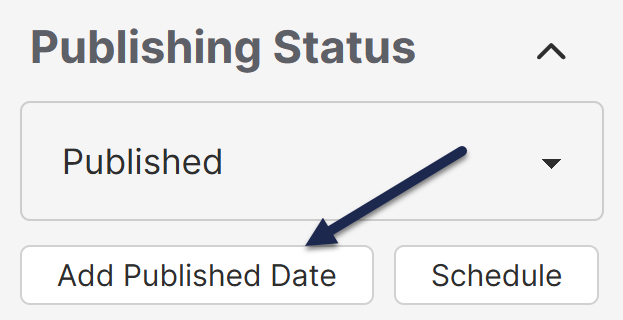 The Add Published Date button
 - Use the date picker to find the date you'd like to use:
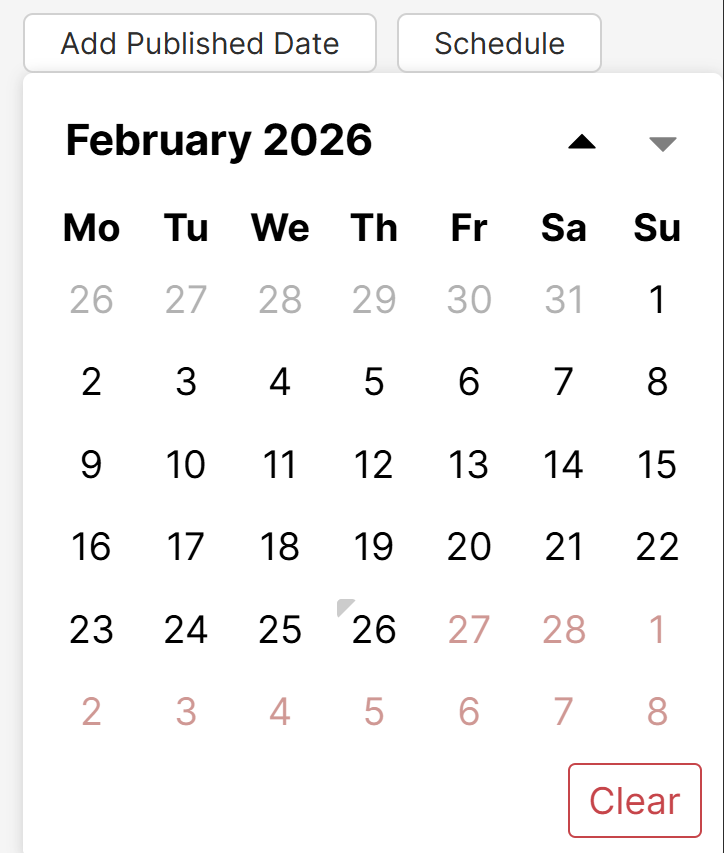 Sample Published Date date picker
- You can only select today's date or dates in the past.
- To pick a date in a previous month or year, select the month + year label at the top of the date picker.
- Once you select a date, the picker disappears and the selected date will display.
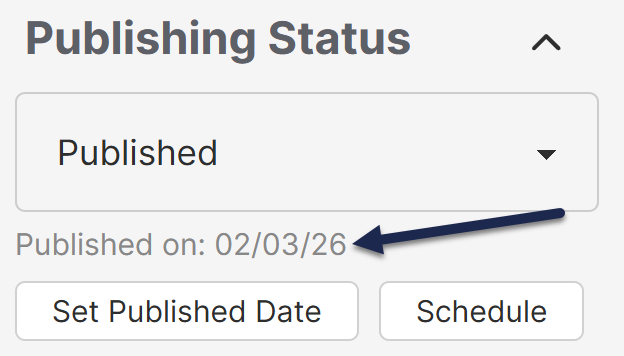 Sample set Published Date
 - Be sure to Save changes to your article so the date fully updates!
Change or remove a published date in old article editor
If you already have a published date added to an article in the old article editor, you can change it or remove it completely by selecting Set Published Date:
- Open the article in the editor.
- Select Set Published Date just below the Published on date:
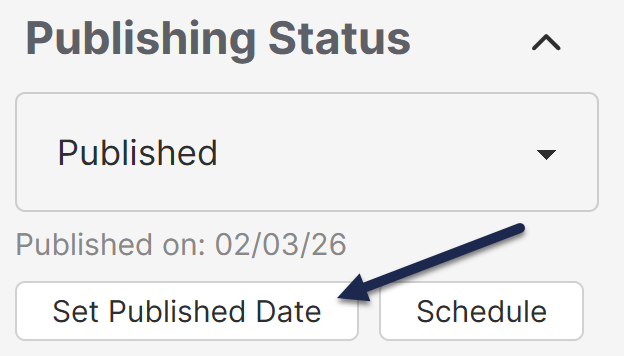
The Published Date date picker opens. - To update the Published Date, select the new date.
- To remove the Published Date, select Clear in the lower right of the picker:
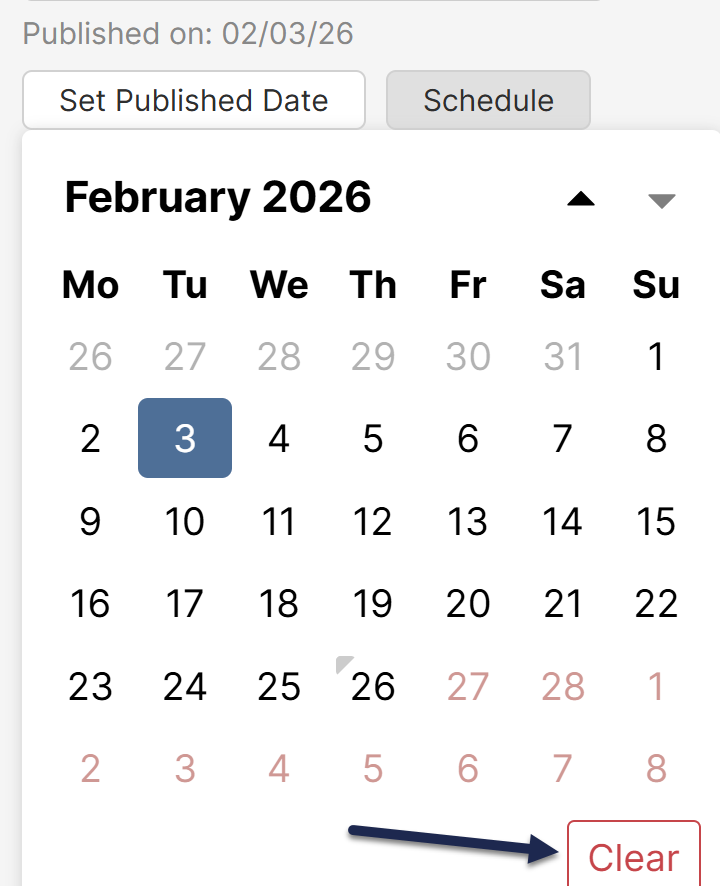 Select Clear in the Published Date date picker to remove the Published Date completely
 - Be sure to Save your changes!
