
Reader groups allow you to show content only to members of the specified groups. They can be great for showing things to different customer types, internal vs. external readers, and more!
Authors must have either Full Admin privileges or Admin access to readers to create reader groups.
To create a reader group:
- Go to Account > Readers. The Readers page opens to the Readers tab.
- Open the Groups tab.
- Select + Add Group.
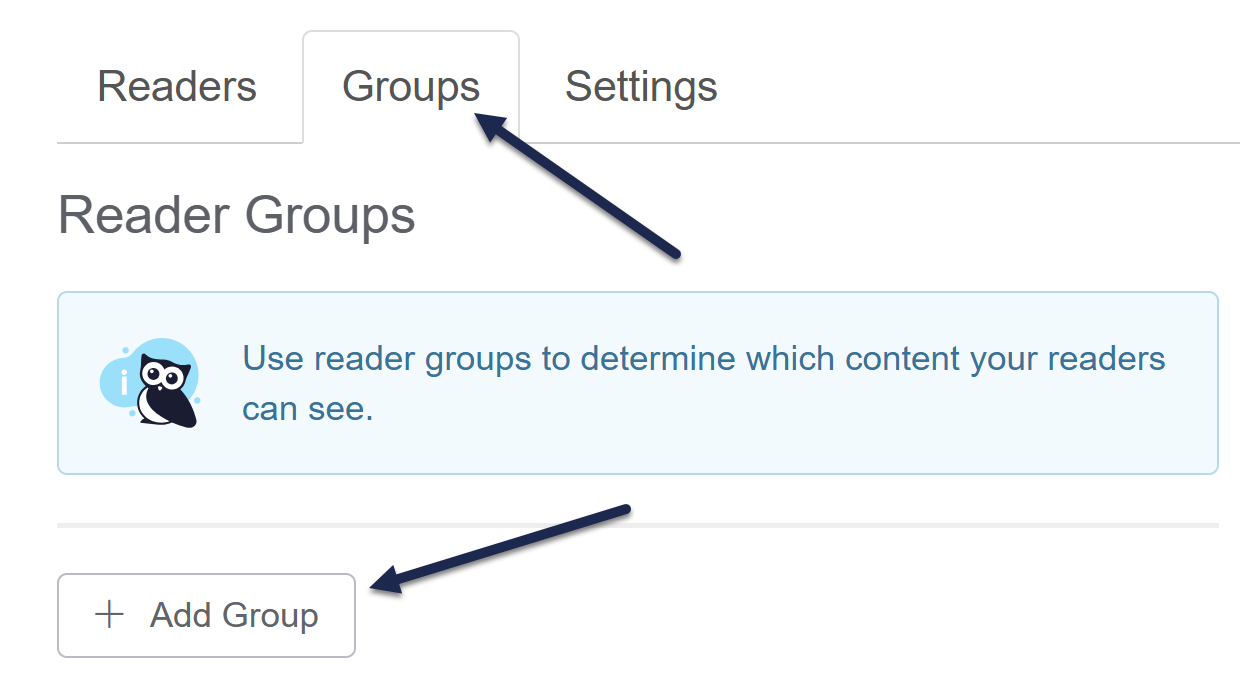 Open the Groups tab and select + Add Group button
The Create Reader Group modal opens. - Enter the Group Name you'd like to use. This name will be displayed in the article and category editor.
- The KO only reader group checkbox determines how to handle this reader group if you're using Single Sign-On (SSO):
- if the box is checked, SSO can't control group membership. You'll need to manually add or remove readers from the group.
- If the box is unchecked, SSO will control and override group membership. This means that even if you manually add or remove readers from the group, SSO will override your changes to match what it has stored for their groups.
- If you aren't using SSO, the box doesn't really change anything, since you'd still be manually administering group membership!
- Once you've finished your selections, select Create Group to finish creating the group.
Congratulations, your group is now created! You can assign readers to it (if SSO isn't doing so) and/or restrict categories and articles to your group(s)!
To change the order your reader groups are displayed in, use the arrows to the right of the group name: