
When you change the permalink of an article, what happens when someone navigates to that old URL?
If you don't do anything, they'll usually hit a 404 page.
If you use the Old Links feature, they'll be seamlessly 301-redirected to the new URL. You have two options for using old links:
- Adding old links manually. Refer to Redirect old articles to a new permalink for more information on adding old links manually.
- Turning on a setting that will automatically prompt you to add an old link if you save an article or category with an edited permalink. Follow the instructions on this page to use this setting.
How automatic redirect prompts work
With this setting turned on, if you edit an article or category to change its permalink, when you Save your changes, you'll be prompted to add the permalink you just removed as an Old Link automatically.
This saves you manual work, reminds you to set up the redirect, and keeps your content redirecting smoothly.
This setting is turned on in new knowledge bases by default. If you have an older knowledge base, we recommend you use it too!
The information below varies based on whether you're using our 2026 new editor or old editor.
To figure out which instructions to follow:
- Open any article for editing.
- If the lefthand navigation is collapsed and there's a link near the top of the page to Switch to old editor, follow the New editor documentation.
- If the lefthand navigation is expanded and the top of the editor and the righthand column have a heavier grey background, follow the Old editor documentation.
Here are side-by-side examples of the new editor and the old editor:
 Sample New editor
 Sample Old editor
Try out the new editor
We'd love your feedback on the new editor. To switch to the new editor, open any article for editing and select the Switch to new editor link at the top of the editor.
Old link prompts in new editor
In the new article editor, the Add old link modal opens:
 Sample Add old link modal in new article editor
If you select Add old link, KnowledgeOwl automatically adds the old link for you.
If you select No thanks, no old links are created.
Old link prompts in old editor
In the category editor and the old article editor, an untitled permalink changed modal opens:
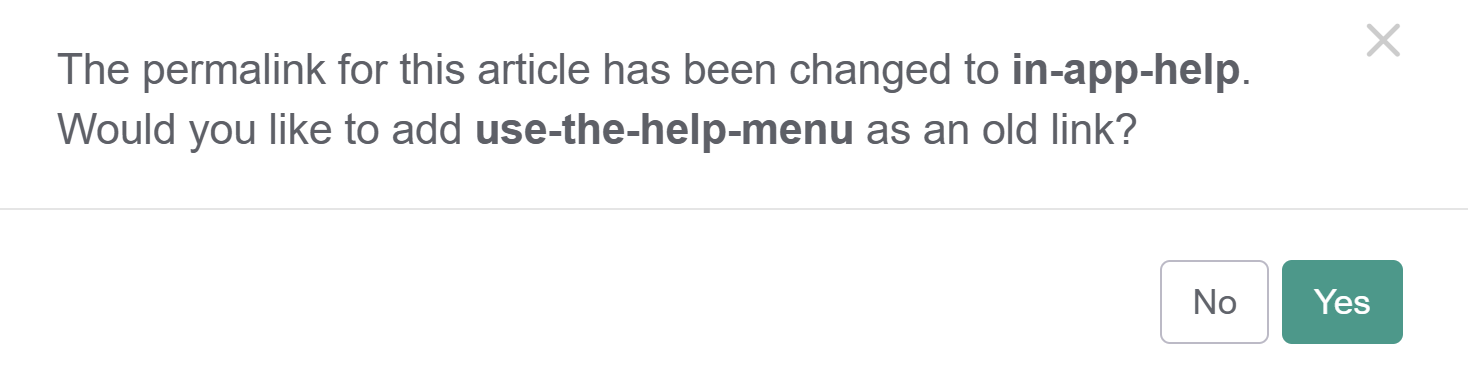 Sample permalink changed modal
If you select Yes, KnowledgeOwl automatically adds the old link for you.
If you select No, no old links are created.
Turn on automatic redirect prompts
To turn it on:
- Go to KB settings > Article editor.
- Under Content editor, check the box to Automatically prompt to create a redirect link when changing the content's current permalink.
- Save your changes.
You'll now be prompted to add a previous permalink as an old link whenever you save changes to an article or category permalink.