
Authors who are Full Account Admins can add new Authors.
When you add a new author, KnowledgeOwl sends an invitation email with a temporary password. When the new author first logs in to KnowledgeOwl, they'll be asked to update their password.
To add a new author:
- Go to Account > Authors.
- Select + Add Author.
Don't have this option?
If there is no + Add Author option and instead your Authors page has an Upgrade for More Author Seats option, you don't have any available author seats. Add them by selecting that upgrade option or going to Account > Billing to add more author seats. Refer to Add an author seat: in-app credit card or Add an author seat: invoice for more detailed instructions.The Add Author page opens.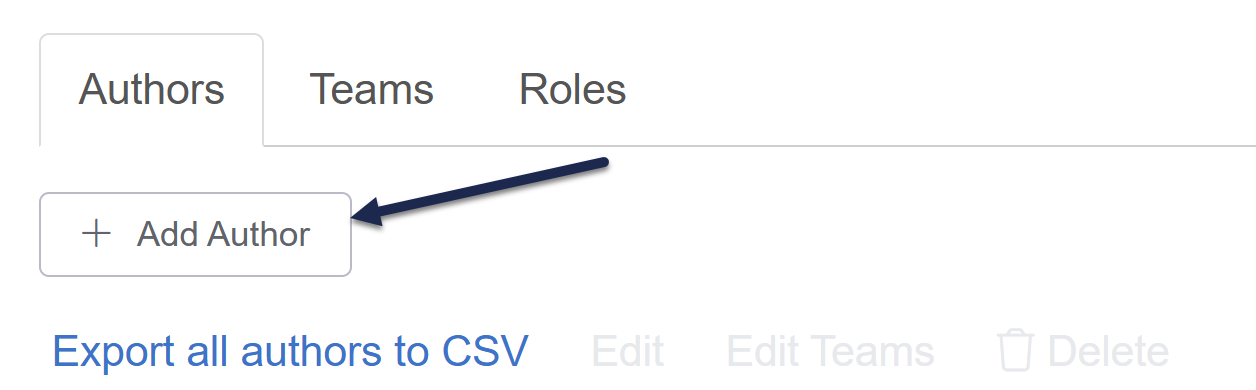 Select + Add Author
 - Enter the author's Email Address. This email address is where the author welcome email will be sent; it also acts as the author's username.
- Enter the author's First Name and Last Name. This guarantees that their name will show up properly in Author dropdowns, Manage Author filters, and in the revision history.
- If this author should have administrator privileges, select the Admin Rights they should have. Refer to Author permissions for more information on these options.
- In Knowledge Base Access, use + Add KB Access to give them access to at least one knowledge base. When you grant access, you also select the Access role the author should have for that knowledge base. This role determines what actions an author can complete in your knowledge base. Editor and Writer are built-in roles; additional roles listed here will depend on whether you've created Custom roles. Refer to What is the difference between an editor and a writer? and the custom role permissions breakdown for these roles' permissions.
- Optional: Assign the author to one or more Author Teams. Refer to Author Teams for more information.
- Optional, unusual: Assign the author to one or more Reader Groups. Authors have access to all reader group content by default; only use this setting if you want to limit them to specific reader groups.
Use with care
If you want an author to have access to all content in the knowledge base, DO NOT ADD reader groups to their account. - Save your changes.
