
Use Customize > Default text to change KnowledgeOwl's default wording to better match your organization. Refer to Customize default text overview for more information on using this feature overall; refer to Add and remove customized text strings for instructions on editing text strings.
On this page, we walk through all of the Search Default Text Strings available with accompanying screenshots to show how they're used.
Default text string references
Here's a list of all the Default Text strings available in the Search Knowledge Base Section:
| Default Text String | Description | Additional notes/description | Screenshot References | ||
|---|---|---|---|---|---|
| Search for articles... | Global search bar placeholder text | This placeholder is used wherever the search bar appears, including on the homepage and top navigation. | Global Search screenshots, #1 | ||
| Hit enter to search | Global search bar autocomplete call to action | When someone has started to type in a search, this text appears at the bottom of the typeahead search results. It appears everywhere the search bar is used. | Global Search screenshots, #3 | ||
| Refine | Global search bar category filter button label | The button added to all search bars when the Filter search by categories option is enabled. | Global Search screenshots, #2 | ||
| Search results... | Search results page header | Search Results Page screenshots, #4 | |||
| Search | Search bar button label, search results page | When you're viewing the Search Results page, the search bar displayed there shows this text label instead of the magnifying glass button. | Search Results Page screenshots, #5 | ||
| Search | Search input field title in search bar and search results page | This text is displayed when you hover over the search bar anywhere other than the homepage. | Global Search screenshots, #23 | ||
| Total results: | Search results page total search results count label | This is the label for the total number of search results returned, which is displayed just below the search bar on the Search Results page. | Search Results Page screenshots, #6 | ||
| Sort by: | Search results page sort control label | The label displayed to the left of the Sort by dropdown, just beneath the Search bar. Only displayed when Sorting is enabled in search. | Search Results Page screenshots, #7 | ||
| Relevance | Search results page Relevance sort option | The default and first option in the Sort by dropdown, which sorts based entirely on relevancy and ranking algorithms. Only displayed when Sorting is enabled in search. | Search Results Page screenshots, #8 | ||
| Last Updated | Search results page Last Updated sort option | The third option displayed in the Sort by dropdown, which sorts based on last modified date. Only displayed when Sorting is enabled in search. | Search Results Page screenshots, #16 | ||
| Newest | Search results page Newest sort option | The final option displayed in the Sort by dropdown, which sorts based on create date. Only displayed when Sorting is enabled in search. | Search Results Page screenshots, #17 | ||
| Glossary | Glossary snippet search result link to Glossary | The link to the Glossary that is displayed in a glossary snippet search result. Only displayed when Glossary snippets are enabled in search and a glossary term has been searched. | Search Results Page screenshots, #19 | ||
| Glossary | Glossary snippet link to Glossary | The link to the Glossary that is displayed when the word "Glossary" is searched. Only displayed when Add the glossary page to your search results is enabled in search and the word "glossary" has been searched. | Search Results Page screenshots, #20 | ||
| Refine by Category | Search results page category filter heading | The header displayed above the category filters on the Search Results Page. Only displayed when the Filter search by categories option is enabled. | Search Results Page screenshots, #9 | ||
| Refresh results | Search results refresh results button | When the category filters have been changed on the Search Results Page, this text appears with the refresh action to update the search results to use the new filter selections. Only displayed when the Filter search by categories option is enabled. | Search Results Page screenshots, #10 | ||
| No results found. | Search results page text shown when no search results match | Message displayed when no search results have been found. | Search Results Page screenshots, #21 | ||
| Update in progress. Please wait a minute and try again. | Text displayed when search reindex is running | This message is only displayed when someone tries to search and a search reindex is running. | Search Results Page screenshots, #22 | ||
| Search is temporarily unavailable. Please wait a moment and try again. | Text displayed when there is an error searching | This message is only displayed if an error occurs during the search, which is a pretty rare event. The display is similar to the Update in progress message. | |||
| Created on: | Individual search result metadata label when Newest sort used | When the Newest sort order is selected, this label precedes the create date displayed for an individual search result. Only displayed when Sorting is enabled in search. | Search Results Page screenshots, #18 | ||
| Last Updated: |
| If sorting is not enabled, this label is shown at all times in individual search results. If Sorting is enabled in search, this labels is shown when the default Relevance sort or the Last Updated sort is selected. | Search Results Page screenshots, #11 | ||
| Tags: | Individual search result label for tags list | If an article has tags, the tags are displayed in the individual search result. This label precedes the tag list. If you have added the article-tags merge code to your Article HTML, this will also update that label in articles and PDFs. | Search Results Page screenshots, #13 | ||
| in | Individual search result text between tags and parent category link | In an individual search result, this preposition is displayed between the initial metadata line (which varies based on sort) and the category the article is stored within. | Search Results Page screenshots, #12 |
Global Search screenshots
The global search bar can appear many places, including:
- The homepage
- The top navigation
- The table of contents
- The right column
Here are a few examples of where it's used:
 Global search bar on the homepage
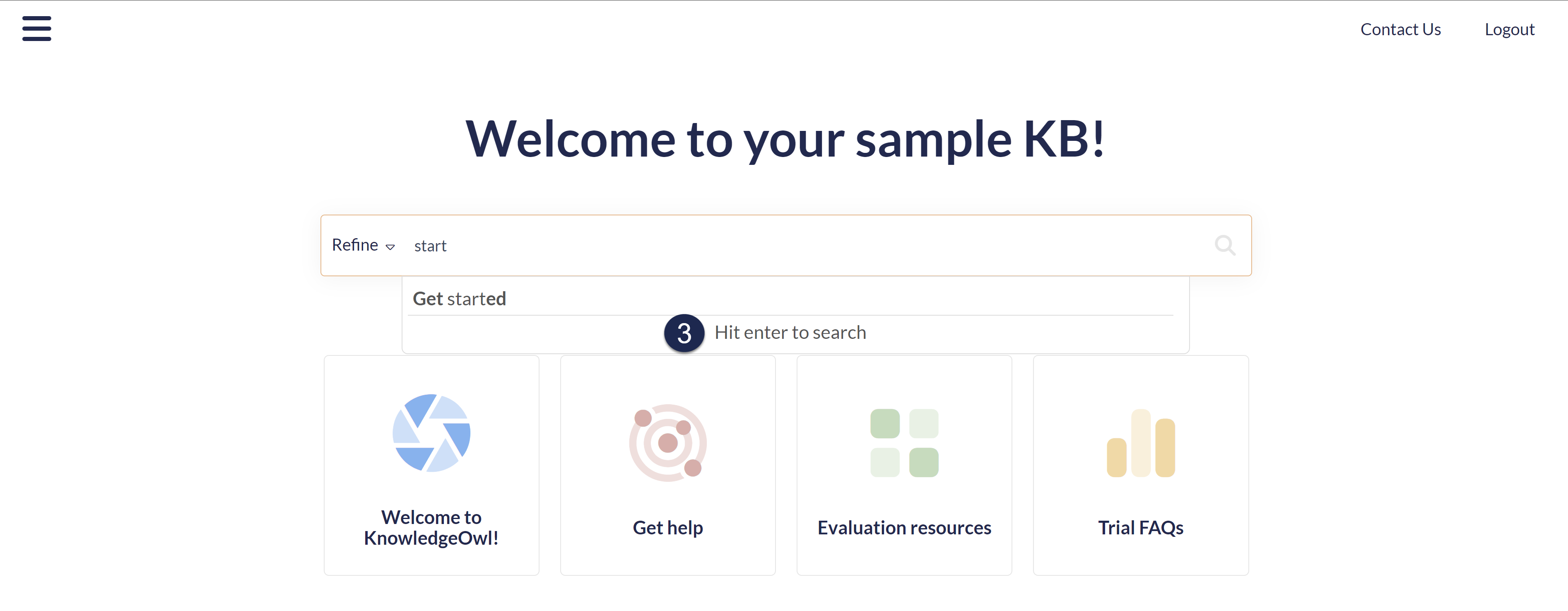 Global search bar on the homepage, with typeahead search
 Global search bar in the top navigation & table of contents
 Global search bar in the top navigation, with typeahead search
 Global search bar in the top navigation, on-hover text
Search Results Page screenshots
The Search Results Page will look a bit different depending on whether you the option to Filter search by categories enabled or not. These screenshots show the page with that option enabled, but if you aren't using it, the Refine by Category section and its elements won't be visible.
 Search Results Page with Relevance sort selected
 Search Results Page with new Refine by Category options selected and Relevance search result elements highlighted
 Search Results Page with Last Updated sort selected
 Search Results Page with Newest sort selected
 Search Results Page with matching glossary snippet
 Search Results Page with "Glossary" searched and no article results found
 Message displayed during search reindex