
The Owl Analytics Export API endpoint is https://app.knowledgeowl.com/analytics/data.
You must pass your knowledge base ID (project_id), a start date (start_date), and an end_date (end date) to return data.
Choose from three reports to export:
- Overview report: Don't specify a
reportparameter - Logs report: Set
report=visits - Readers report: Set
report=users
You can also set the format parameter to choose between xml or csv format for your export. Refer to Which report format do I need? for some information about report formats and their uses.
There are three ways you can call the Owl Analytics Export API:
- A curl call
- In your browser's URL
- Using an API call tool. We provide instructions and a forkable collection for Postman but you could use the guidelines here to set up a similar tool.
We provide examples or setup instructions for each below.
Full API endpoint documentation
Refer to our Owl Analytics Export API endpoint documentation for information on the parameters and formats the endpoint expects.
curl call
You can use a curl call in Terminal to export report data.
Use this sample format to call the Export API via curl:
curl -u "{export_token}:X" -X GET "https://app.knowledgeowl.com/analytics/data?project_id={knowledgebase_id}&start_date={yyyy-mm-dd}&end_date={yyyy-mm-dd}&format={format}"For example, if we wanted to pull the Logs report for 4 March 2026 in xml format, our call would look like this:
curl -u "{export_token}:X" -X GET "https://app.knowledgeowl.com/analytics/data?project_id={knowledgebase_id}&start_date=2026-03-04&end_date=2026-03-04&format=xml&report=visits"Refer to our Owl Analytics Export API endpoint documentation for information on the parameters and formats the endpoint expects.
Browser URL call
For quick testing to view the report in your browser, hit the endpoint directly in your browser's address bar. Use the Copy sample endpoint option in KB settings > Owl Analytics to get started or copy one of the samples below.
Use with caution
This approach does pose a potential security risk since it exposes your API key in the URL. Refer to our Export API token best practices for more detailed guidance.
Here's a sample format for the URL:
https://app.knowledgeowl.com/analytics/data?project_id={knowledgebase_id}&start_date={yyyy-mm-dd}&end_date={yyyy-mm-dd}&format=xml&api_key={export_token}CSV results should display in any browser; XML results will display in Chrome but may not display in all browsers.
For example, if we wanted to pull the Readers report for the week of 1 - 7 March 2026 in csv format, our call would look like this:
https://app.knowledgeowl.com/analytics/data?project_id={knowledgebase_id}&start_date=2026-03-01&end_date=2026-03-07&format=csv&report=users&api_key={export_token}Refer to our Owl Analytics Export API endpoint documentation for information on the parameters and formats the endpoint expects.
Postman call
To use a tool like Postman to make this call:
- Use Basic Authentication as your Authorization.
- Enter your export token as the username.
- Enter
xas the password.
Refer to our Owl Analytics Export API endpoint documentation for information on the parameters and formats the endpoint expects.
Postman collection
If you already use Postman, save yourself some time and fork our collection below, which includes the correct authorization setup and all the parameters you'll need:
Once you've forked the collection, set up an environment for the three variables the collection uses:
- In Postman, select the Environment dropdown in the upper right. If you're new to environments, it will say No environments.
- Refer to Postman's Group sets of variables in Postman using environments documentation if you've never worked with environments in Postman before.
- Select Create Environment to create your first environment or select the + (plus) sign if you already have some.
- Call the new environment something like
Owl Analytics Export API. - In that environment, set up three variables:
api_key: Copy your account export token from KB settings > Owl Analytics > Export API and enter it as this variable's value.password: Enter the letterx.knowledgebase_id: Open your knowledge base in app.knowledgeowl.com. On Pages, copy the number that comes after/id/in the URL. Enter this as the value for this variable. Refer to Find your knowledge base ID or project ID for more detailed instructions.
- Your environment should look a bit like this:
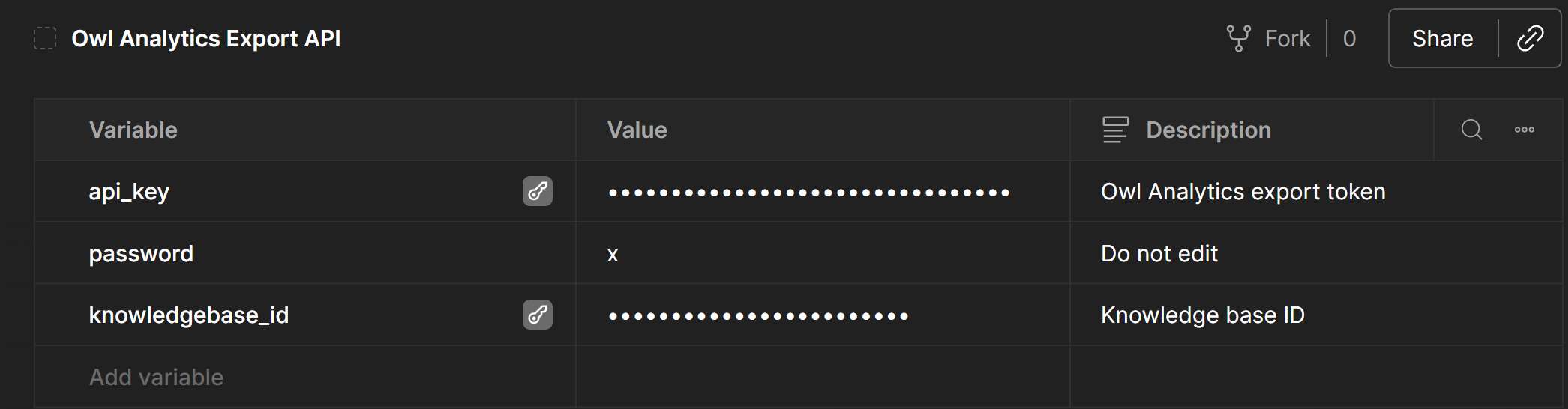 Sample Owl Analytics Export API environment in Postman
 - Save those environment changes.
Now open your Owl Analytics Export API collection.
In the environment dropdown at the upper right, select the environment you just created.
We also recommend pinning this environment to the connection by selecting the pushpin icon:
 Select this environment but also pin it to the collection, so it defaults to this environment in the future
Refer to Postman's Pin environments to collections for more detailed instructions on pinning an environment to a collection.