
If you or one of your teams has already been using Freshdesk as a knowledge base solution, you may have a lot of content there you'd like to move over to KnowledgeOwl. You can import that content from a Freshdesk knowledge base/help center directly into your KnowledgeOwl knowledge base with a few clicks.
Before you begin
You'll need two pieces of information from your Freshdesk account before you can import content to KnowledgeOwl:
- Your Freshdesk subdomain
- A valid Freshdesk API key. Refer to Freshdesk's How to find your API key documentation for more information.
Import your content from Freshdesk
Follow these steps to import your content from Freshdesk:
- In KnowledgeOwl, go to Tools > Imports. The Import content page opens.
- Under Third-party imports, select Freshdesk. The Import Freshdesk content page opens:
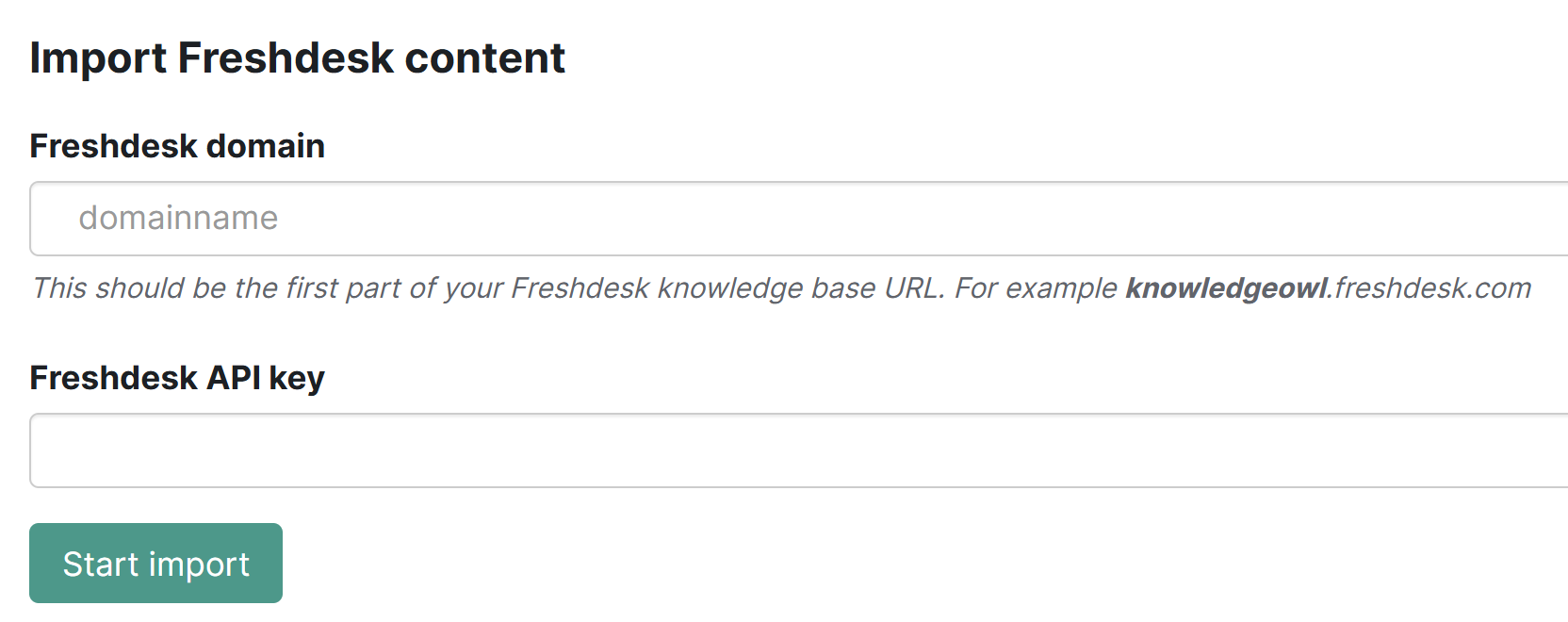 The Import Freshdesk content page
 - Enter your Freshdesk subdomain name as the Freshdesk domain. For example,
knowledgeowlis the Freshdesk subdomain forknowledgeowl.freshdesk.com. - Enter a Freshdesk API Key. Refer to the Freshdesk API documentation for instructions on finding your API key.
- Once you've filled in each of the fields, select Start import.
The page updates to display a progress bar. Once the import is complete, a confirmation message displays.
If you're testing the import in a new knowledge base and want to make changes and try to re-import, delete this knowledge base and create a new knowledge base to re-test the import. Refer to Testing imports for more details.