
When you no longer use a snippet or you've replaced it with a more current one, delete the unused snippet to clean up your Snippets page and prevent your authors from using it moving forward.
When you delete a snippet, here's what happens:
- The snippet's removed completely from your Snippets page.
- The snippet won't appear in the Insert Snippet modal lookup.
- Your snippet merge code will still exist in any articles, categories, or Customize > Style > Custom HTML templates where you used it, but it won't render to anything in the live knowledge base. The merge code will be hidden from that view and replaced with no text or code.
Before you delete
Before you delete your snippet, we strongly recommend reviewing the snippet's references to review where it's been used.
Once you delete the snippet, the references are removed, so you won't have a quick punchdown list to check where it was used and remove the merge code.
Refer to Snippet references for more detailed instructions on viewing and working with snippet references.
Hard to recover
You can't recover a deleted snippet. Our support team can if you can provide the name or merge code, but it's much easier to check the references before you delete!
Delete your snippet
Once you've verified the snippet isn't used meaningfully anywhere, delete your snippet:
- In the left navigation, go to Snippets. The Snippets page opens.
- Browse or search to find the snippet you want to delete.
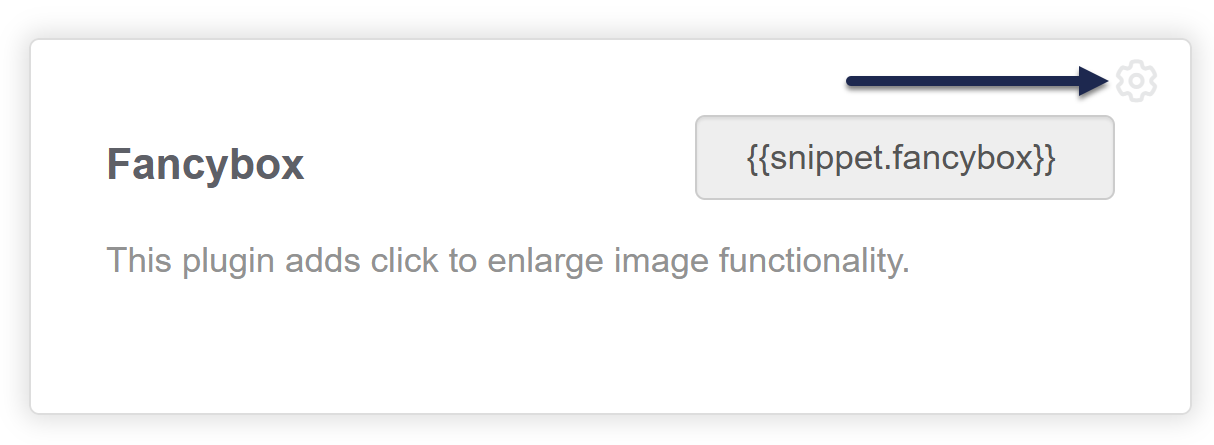
- In the snippet's card, select the gear cog icon in the upper right:
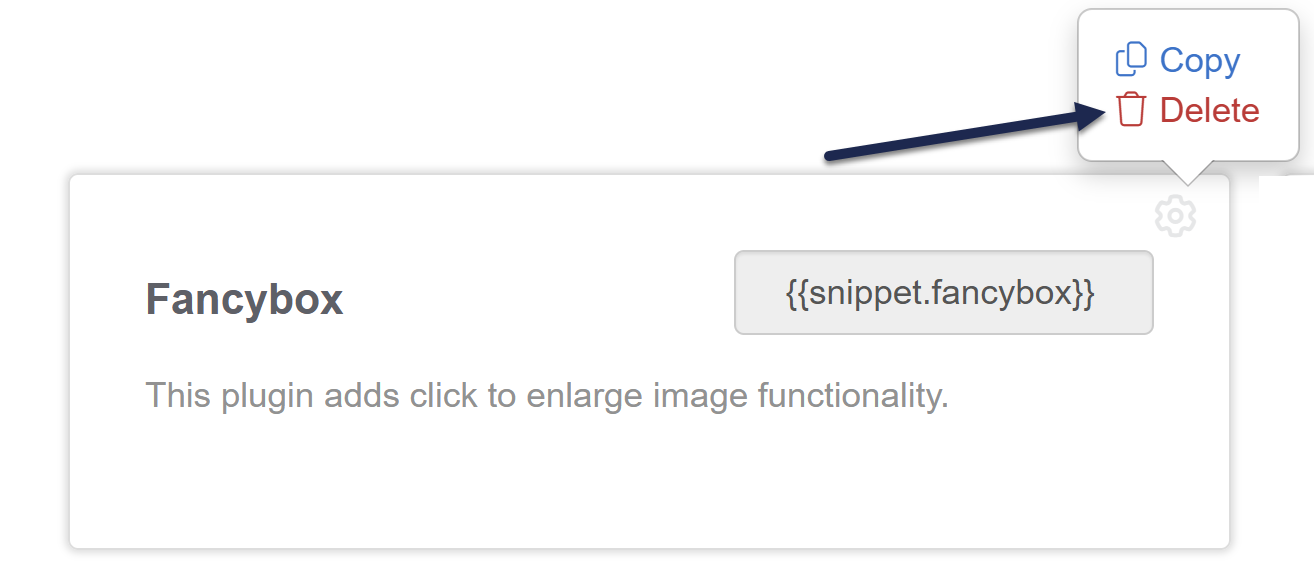
- A small modal opens with snippet options. Select Delete:
- A snippet delete confirmation modal opens. Review the name of the snippet displayed there to be sure it's the snippet you meant to delete.
- If it's correct, select OK to delete the snippet.
The snippet's deleted.
Remove snippet merge code
Don't panic if you deleted a snippet without making sure it had been removed from all your content. As an author, you can see the snippet merge code in the article editor, category editor, and Customize > Style, but in the live knowledge base, that snippet merge code is replaced with no text or code, so it's as if it doesn't exist.
To track down wherever the snippet was used:
- Use Tools > Find and replace to search for part or all of the snippet merge code. This should let you remove it from articles or custom content categories. Refer to Run find searches for more information; an exact match search for the merge code with or without the curly brackets should do the trick.
- Review Customize > Style (HTML & CSS) > Custom HTML and remove the snippet merge code wherever it appears.
- If the snippet was used in category descriptions, the best way to find it is using the KnowledgeOwl API to pull a list of active categories. Contact us if you'd like help pulling this list; our support owls would be happy to help if you can provide the snippet's merge code!