
Looking for a way to generate content quickly? Use Alchemer's HTTP Connect action to take content from a survey response and push it straight to KnowledgeOwl to create a new article.
There are a million ways you can use this simple integration. Alchemer uses it for outage/incident report tracking, release note archiving, and requests for new knowledge base content.
KnowledgeOwl setup
You'll need three things from KnowledgeOwl:
- Your API Key: Get your API key in Account > API. You can add a new key or copying an existing one. Refer to API keys for more information.
- Your Knowledge Base ID: Your knowledge base ID is displayed in the URL of Pages after
/id/. For example, if our Pages URL ishttps://app.knowledgeowl.com/kb/articles/id/1110111122333a4444aab5bb, our knowledge base ID is1110111122333a4444aab5bb. Refer to Find your knowledge base ID or project ID for more information. - Your Category ID: The ID of a category where you want to create the articles.
- When you select the category in the Pages page, the category ID displays in the URL after
/cid/. For example, if your Pages URL when you have the category open ishttps://app.knowledgeowl.com/kb/articles/id/1110111122333a4444aab5bb/cid/597561f66e121c0323958119, your category ID is597561f66e121c0323958119.
- When you select the category in the Pages page, the category ID displays in the URL after
Alchemer setup
The Alchemer setup contains four steps.
Step 1: Create your survey
In Alchemer, create a survey that includes questions to collect all the data you wish to include in the new article you'll create in KnowledgeOwl. Your survey can be multiple pages if you wish.
Step 2: Set up hidden values to store your new article title and body
On a new page that follows your questions, add two Hidden Values. One Hidden Value will store the title of the article and the other will store the body of the article.
In both of these Hidden Values, use merge codes to pull the data from your survey questions to populate the fields.
For example, below is a quick demo of how we set up our Article Title Hidden Value:
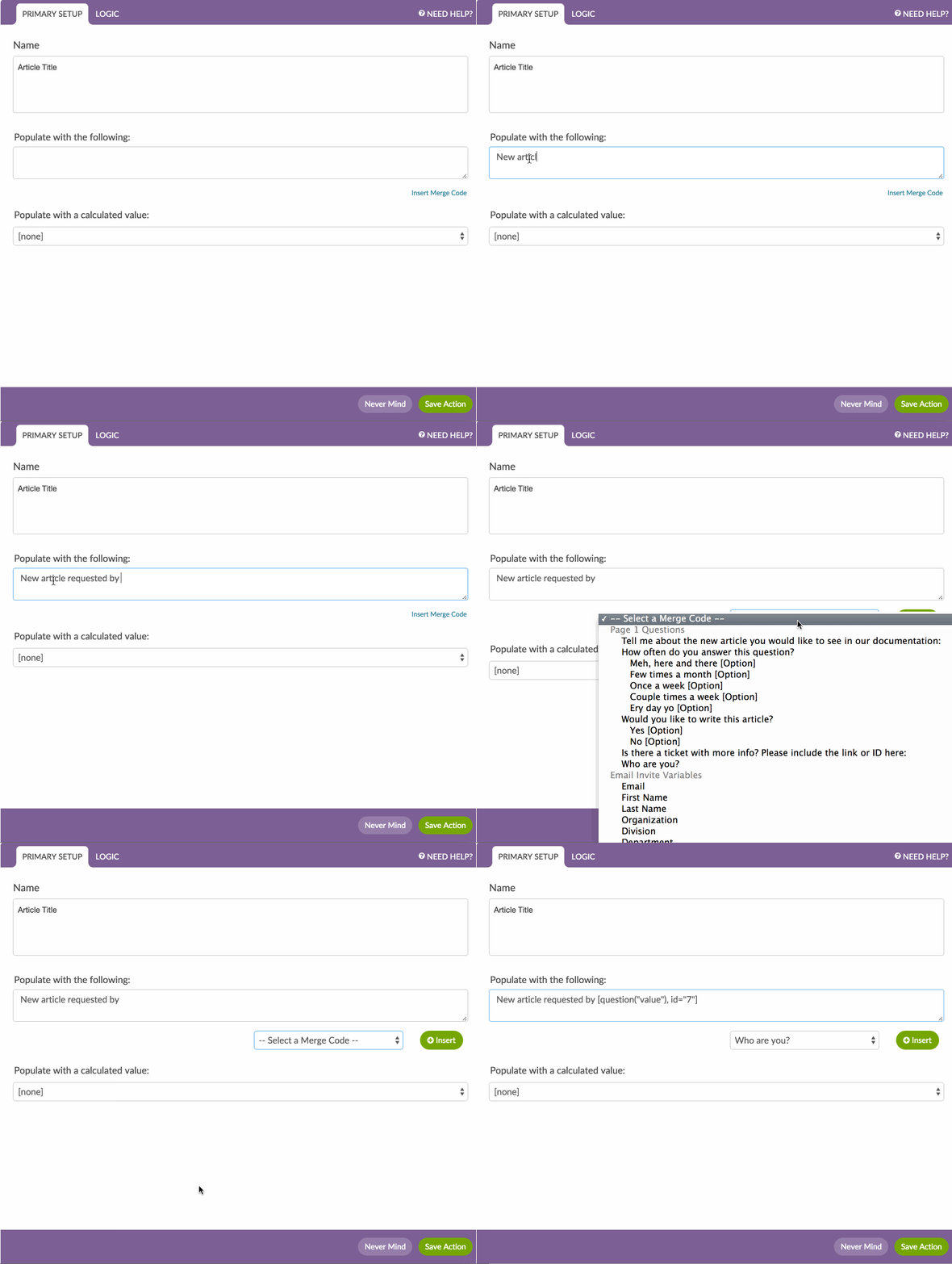
As you can see, our Article Title is set up to send "New article requested by" plus what the respondent enters in the "Who are you?" question in our survey. Thus, our article titles will look like so: New article requested by James.
In the second Hidden Value, include all the content that you wish to include in the body of the article. You'll need to use HTML for any type of formatting you wish to include. We recommend, at the very least, including line breaks (<br />) so the resulting article is not one giant block of text. If you'd like to include additional formatting like bolded text or bulleted or numbered lists, here's a great guide to get you started: html4_cheatsheet.pdf!
<b>Requester:</b> [question("value"), id="8"]
<br />
<b>Data:</b> [question("value"), id="6"] <br />
<b>More Data: </b>[question("value"), id="5"] <br />
Step 3: Set up an HTTP Connect Action to create your new article
Next, create an HTTP Connect Action. You'll use this integration to send information to KnowledgeOwl.
- Select Add Action on a page that follows your Hidden Values for the article title and body.
- Give your action a name, select HTTP Connect, and select Save Action and Edit.
- For Method choose: POST.
- The URL protocol must be https.
- Copy the URL below and paste it into the URL field:
app.knowledgeowl.com/api/head/article?_method=POST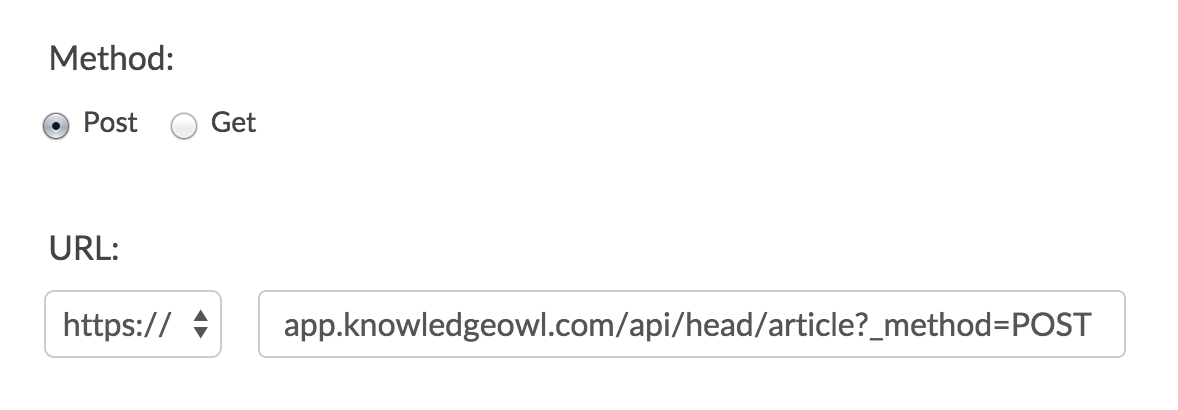
- Under Fields to Pass you'll need to set up a number of fields. Some of these fields will be Static Values; others will pull from a question in your survey. Here's how to set up each of these.
Set up static fields to pass
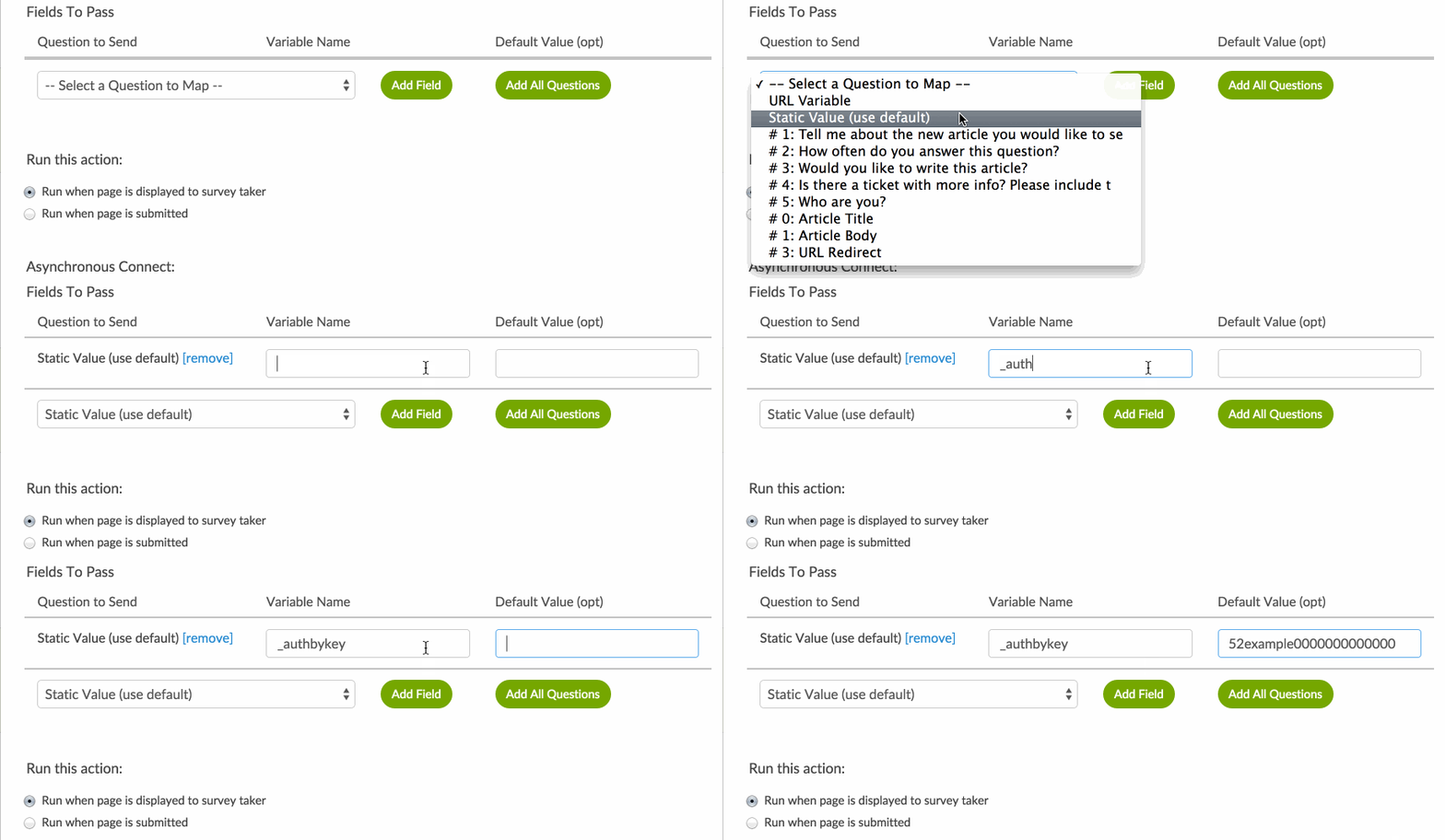
We'll start with your API key, which is a static field:
- Select the Question to Send dropdown and choose Static Value (use default).
- Select Add Field and enter _authbykey (this is the authentication parameter for KnowledgeOwl's API) in the Variable Name field that appears.
- In the Default Value field, paste your KnowledgeOwl API key.
Repeat these steps for all static values that you will pass to KnowledgeOwl to create your new article. Refer to the fields to pass reference.
Set up a field from your survey to pass
To add something from your survey like the Hidden Values you set up for the name of the article and article body, follow these steps:
- Select the Question to Send dropdown and choose the question you want to pass.
- Select Add Field and enter name (this is the parameter required by KnowledgeOwl for the article title) in the Variable Name field.
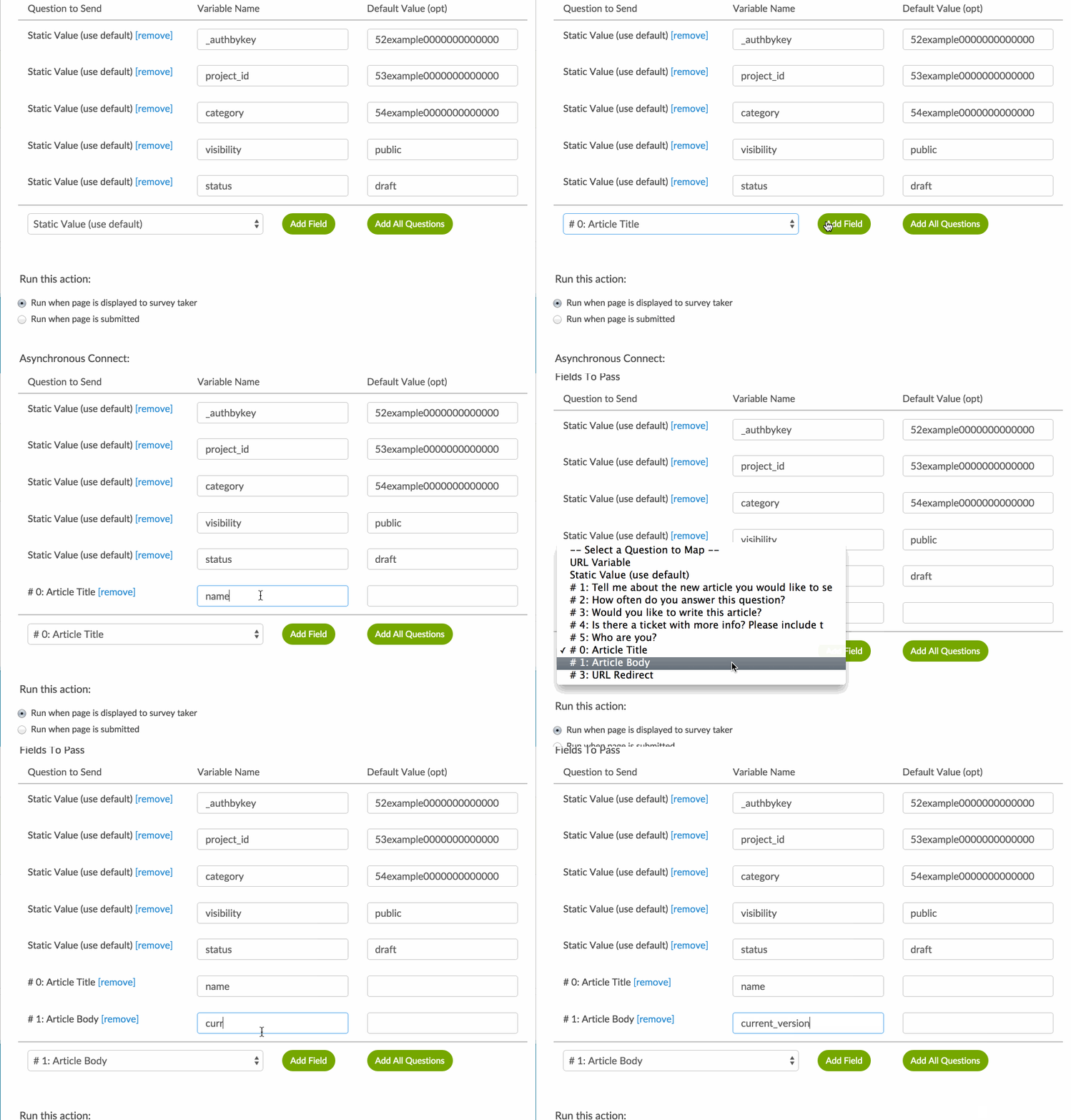
When you are finished, your Fields To Pass section should have the following fields set up:
| Questions to Send | Variable Name | Default Value (opt) |
|---|---|---|
| Static Value | _authbykey | 52example000000000 |
| Static Value | project_id | 53example000000000 |
| Static Value | category | 54example000000000 |
| Static Value | visibility | public |
| Static Value | status | draft |
| # 0: Article Title | name | |
| # 1: Article Body | current_version |
Fields to pass to KnowledgeOwl to create an article
Here's a list of the fields to pass to KnowledgeOwl to create an article. Required fields are marked with an asterisk*.
| Variable Name | Description | Question to Send | Default Value (If applicable) |
|---|---|---|---|
| _authbykey* | Your KnowledgeOwl API key | Static Value | ex: 52example000000000 |
| project_id* | Your Knowledge Base ID | Static Value | ex: 52example000000000 |
| category* | Your Knowledge Base Category you want to add the articles to | Static Value | ex: 557example00000000 |
| visibility* | This will determine who can see your article. See knowledge owl docs for more info. | Static Value | public or custom |
| status* | Sets the status of the article | Static Value | published or draft |
| name* | This will be the name of the new article | Select the Hidden Value from the survey that contains the article name | Optional |
| current_version* | This will body of the the new article | Select the Hidden Value from the survey that contains the article body | Optional |
| index | This is the position in the category list | Static Value | Passing a 1 will add article to the top of the category |
For more help building http connect actions, check out Alchemer's Survey Webhooks: POST or GET Survey Data to/from External Databases article.
To learn about other variables you can pass to KnowledgeOwl, check out our API endpoint documentation.
Troubleshooting
If you get this all set up and your article does not appear in your category when testing, check the HTTP Connect action within each Individual Response.
If it didn't work there are often helpful errors that appear here. For example, a NONSECURE error means you need to change your protocol in your action to https.