
If you or one of your teams has already been using HubSpot as a knowledge base solution, you may have a lot of content there you'd like to move over to KnowledgeOwl. You can import that content from HubSpot directly into your KnowledgeOwl knowledge base with a few clicks.
Before you begin
Before you can import to KnowledgeOwl, export your HubSpot knowledge base articles to a .csv file. Refer to HubSpot's Export web content and data: Knowledge base articles page for detailed instructions.
Download the csv file and have it ready.
Import your content from HubSpot
Follow these steps to import from HubSpot:
- In KnowledgeOwl, go to Tools > Imports. The Import content page opens.
- Under Third-party imports, select HubSpot. The Import from HubSpot page opens:
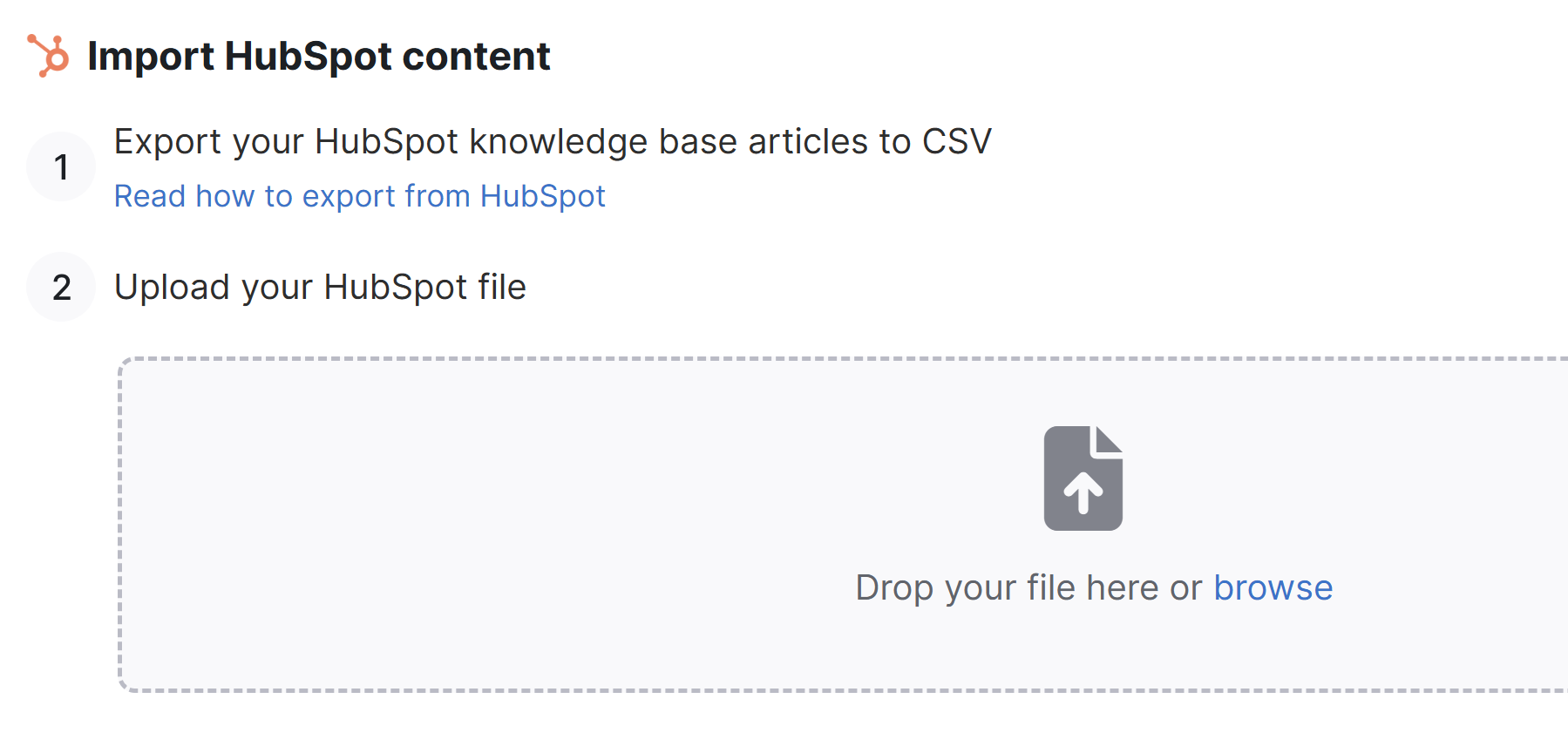 The Import from HubSpot page
 - To Upload your HubSpot file, drag your Hubspot csv file into the box or select the browse link, browse to the file, and select it.
- Once KnowledgeOwl recognizes the file, the page updates to display details of the information we found in the csv file, plus additional options:
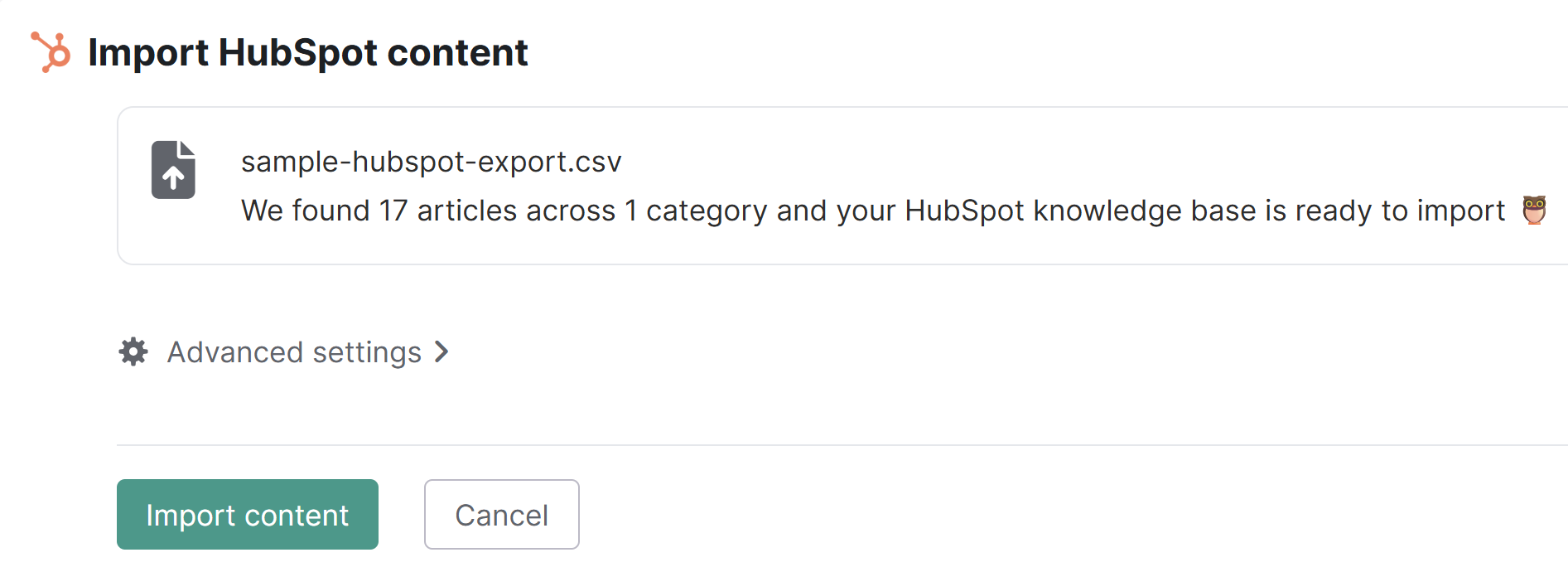 The Import from HubSpot page once you've uploaded a csv file
 - If you don't make any changes, your HubSpot content will be imported using these settings:
- Content hierarchy begins at the top-level.
- All articles set to Published status.
- All images imported and hosted in KnowledgeOwl.
- To override any of the default import settings, select Advanced settings. Here you can:
- Select import destination to change it from Top level to Existing category. Once you select Existing category, start entering the name of a category. The field will autosuggest. Select the category you want to import all content into.
- Select article status to change from Published to one of our other statuses.
- Change the Images settings to Keep existing URLs so that instead of importing images and hosting them in KnowledgeOwl, all images continue to reference the existing URLs and load them from there.
Import images
Only use Keep existing URLs if you have a deeply compelling reason (such as just running a quick test now and you intend to delete the content and do a more formal import later). Keep existing URLs will keep all of your images in your original source system. If that system is deleted or cancelled, all of the images in your documentation would disappear. 😱
- Select Import content to begin the import.
The page refreshes to display a progress bar. Once the import completes, a confirmation message displays.
If you're testing the import in a new knowledge base and want to make changes and try to re-import, delete this knowledge base and create a new knowledge base to re-test the import. Refer to Testing imports for more details.
How the HubSpot import works
HubSpot and KnowledgeOwl are formatted and architected differently, so the importer does some converting as it goes.