
Your knowledge base's homepage is the initial landing page that readers will see if they go to your default link. The homepage often includes things like customer support contact information, announcements, or a description of what the knowledge base contains. You can also show article lists.
How to edit your homepage
There are two places you can edit your homepage, depending on what type of edit you want to make:
- Customize > Homepage: This opens the homepage custom content editor where you can add more content to your homepage, like announcements, instructions, or welcome videos.
- Customize > Style (HTML & CSS) > Custom HTML > Homepage: Here you can edit the overall layout, add or remove the article lists, and more. (You can also adjust styles for how things display in the Custom CSS section.) The text entered in the Homepage custom content editor mentioned above gets inserted wherever the
[homepage("body")]template is: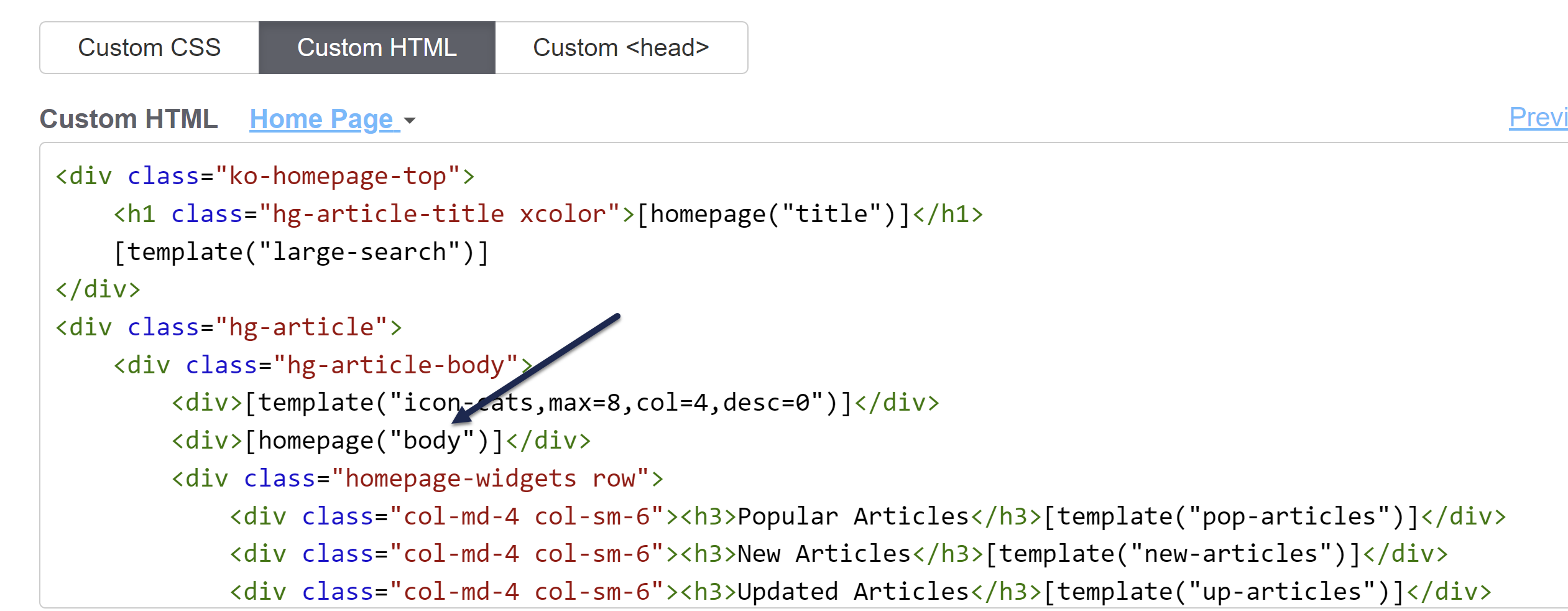 The text entered in the Homepage editor will display where the homepage body template is
Older knowledge bases
Knowledge bases created before October 2022 or created from copies of knowledge bases created before then may have most of their HTML in Customize > Homepage instead of Customize > Style > Custom HTML > Homepage.
If you're editing Customize > Style > Custom HTML > Homepage, the homepage("body") mergecode must appear in the Custom HTML for the Homepage, even if the Homepage editor is empty.
Get started customizing your homepage
We group homepage customizations into three types:
- Welcome text customizations
Refer to the instructions in Change homepage welcome text for detailed instructions to add, edit, remove, or style your knowledge base welcome text. - Article lists
Your homepage comes with three article lists out of the box (New, Updated, and Popular). To learn more about how article lists work, the available lists, how to add and remove article lists from your homepage, and how to create a custom homepage list, refer to Add or remove article lists. - Custom homepage elements
Your homepage is just that: yours. If you want to add or edit a banner image, add a custom callout, or make other customizations, refer to Add custom homepage elements. Don't see something you're looking for? Contact us with details on what you have in mind and our support owls will do their best to help!