
Once you've set up reader groups and restricted some content, it's helpful to test what different reader groups will see.
You have two options to test:
- Use the author toolbar View as option: Useful for testing general reader group access and behavior. Refer to View as option in author toolbar for more detailed instructions.
- Log in as a specific reader: Useful for confirming a specific reader is getting the groups they should have. Refer to Log in as a specific reader for more detailed instructions.
View as option in author toolbar
As an author, you can simulate membership in different groups to test them. This is most useful for testing general reader group access and behavior:
- From app.knowledgeowl.com, select View knowledge base in the left navigation or the View Article or View Category links in the editor. This opens the knowledge base with the author toolbar displayed at the top of the page.
- Select View as from the author toolbar.
The View as a reader modal opens.
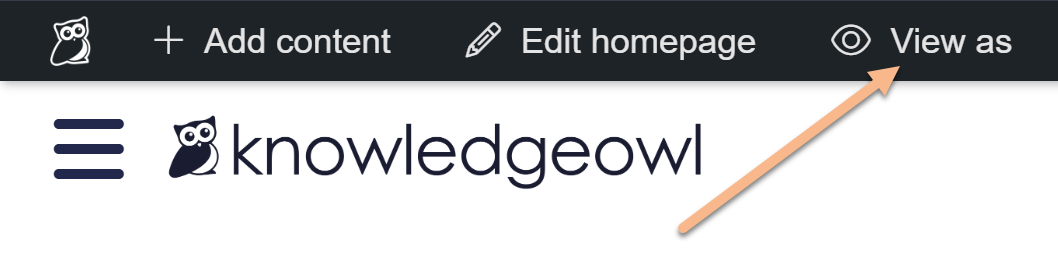 Select View as from the author toolbar in the live knowledge base
 - Use the checkboxes to select the reader group(s) you'd like to simulate, then select Update to apply those changes.
You're now viewing the knowledge base as a member of the reader group(s) you selected. Use View as at any time to switch between groups.
Log in as a specific reader
Of course, you can also create or use an existing reader's account (or assign yourself to a specific reader group) to test reader group permissions. This can be most useful if you're testing to make sure an individual reader has been assigned the correct groups.
In most cases, the fastest way to test is using a different browser or an Incognito or Private browser window, which won't keep any cookies you already have.
You can also test in the same browser by logging out and then logging back in as a specific reader.
If you don't have a logout link in your knowledge base:
- Go to your knowledge base homepage. The URL should end in
/help,/home, or/docs. - Append
/readerlogoutto the end of the URL. The URL should now end in/help/readerlogout,/home/readerlogout, or/docs/readerlogout. - Hit enter (or return) to go to this new URL.
- Log in to your knowledge base as the reader you wish to test.