
You can mark individual articles as templates in the article editor to make them available as templates for new article creation. When you create a new article from a template, it creates a one-off copy of the template.
There is no ongoing link between the template and the new article, so updates to the template do not affect the article.
Articles created from this template will include:
- The complete contents of this article's body (whatever's in the editor)
- Any author notes added to this article (This can be a great way to add instructions on how to use the template!)
The information below varies based on whether you're using our 2026 new editor or old editor.
To figure out which instructions to follow:
- Open any article for editing.
- If the lefthand navigation is collapsed and there's a link near the top of the page to Switch to old editor, follow the New editor documentation.
- If the lefthand navigation is expanded and the top of the editor and the righthand column have a heavier grey background, follow the Old editor documentation.
Here are side-by-side examples of the new editor and the old editor:
 Sample New editor
 Sample Old editor
Try out the new editor
We'd love your feedback on the new editor. To switch to the new editor, open any article for editing and select the Switch to new editor link at the top of the editor.
Create template in new editor
Follow these steps to turn any article into a template in the new editor:
- Open the article for editing.
- In the Other section of the righthand column, select anywhere in the Can't be used as a template text next to Template:
 Select anywhere in the text next to TemplateThe template modal opens.
 - Select Can be used as a template:
The modal should automatically close once you make your selection. Select Can be used as a template
 - Be sure to Save your article changes.


Create template in old editor
Follow these steps to turn any article into a template in the old editor:
- Open the article for editing.
- In the Reuse Flags section of the righthand column, check the box for Template Article.
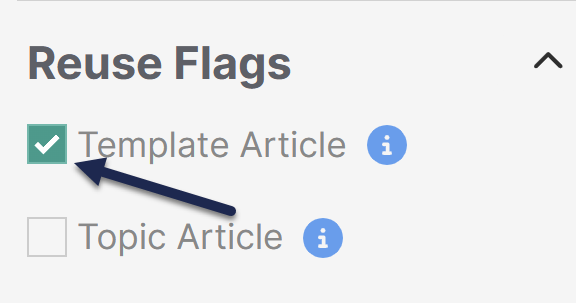 The Template Article checkbox is in the Reuse Flags section of the editor's righthand column
 - Be sure to Save your changes.
The article will now be available in the Select a Template dropdown of the New article modal when you select Create from template.
Refer to Create a new article from template for instructions on creating new articles from your template.