
After you've created an article or version and saved it for the first time, a revision is automatically logged every time you save an article with some type of change and click the Save button. This means that each revision could be something as small as a corrected typo or changed punctuation mark, or as big as replacing all text of the article. Recent Revisions capture changes to the article and version's text only. So if you just replaced one screenshot for another, that won't be captured.
Revisions are basically the most recent save log. We automatically save up to ten (10) recent revisions. Once you have saved more than ten times, we'll automatically delete the older revisions to maintain a maximum of ten.
If you're using shared content articles, all revisions for both child and parent article are stored and displayed at the parent article. The child article has no revision history of its own.
Think of revisions as a snapshot of the most recent changes to an article, and an "oh no what have I done?" protection if you've recently made changes and messed something up.
Generally, people use revisions to:
- See who's edited the article recently, and how substantive those edits were
- Recover a recent revision of the article when something's gone wrong (someone accidentally deleted things or misunderstood what edits to make, etc.)
Do not use revisions for:
- Long-term auditing/tracking of content changes
- Permanent record of content to be able to revert/show what the content was at a specific point in time (such as for a compliance audit, etc.)
You can see when revisions have been stored by looking just under the Save, Preview, and Back buttons. If revisions have been stored, you'll see a Recent Revisions hyperlink with the number of revisions in parentheses:
 Sample Recent Revisions link
Click that link to view a list of your recent revisions:
 Sample Revisions List
The most recent revision will be at the top, as Revision #1.
Once you've opened the revision history list, you can compare revisions to see what changed. The most recent revision will be at the top, as Revision #1. It will only give you the option to Compare to Previous Revision. The oldest revision will be at the bottom.

Here you'll see a few different links to begin comparisons:
- Compare to Previous Revision: This will compare the revision to the revision immediately below it in the list. So if I click the link at #1 in the screenshot, that will compare Revision #1 with Revision #2.
- Compare to Current: This will compare the revision to Revision #1, the current revision. So if I click the link at #2 in the screenshot, that will compare Revision #4 with Revision #1.
- Compare to Initial Draft: You'll only see this option If you have fewer than 10 total revisions. This will allow you to view the first content save for the article.
Clicking on one of those comparisons will open a new screen that will do a side-by-side comparison:
 A sample Revision Comparison
The exact display will depend on which compare option you chose. The screenshot above is the Compare to Current, which shows the current content on the right.
- The Content section will show the Author listed at the time of save, as well as the date + timestamp of the revision's save.
- The Title lets you compare the article's main title between the two revisions.
- The Toc Title lets you compare the article's Internal Title (if there was one) between the two revisions.
- The Publishing Status lets you compare the article's publishing status. Note: you won't see a publishing status for revisions saved prior to 15 July 2020.
- The Content Changes section lets you compare the article's text between the two revisions.
- Any deletions will be in grey font and strikethrough:
grey font and strikethrough.- Deleted images will have a single space highlight on the line above or below them.
- Any additions in a revision will be in green font and underlined: green font and underlined.
- Added images will have a single space highlight on the line above or below them.
- The Revision Compared to Current Content will provide a single-pane HTML comparison, with similar highlighting, so you can see the exact HTML differences.
- You can revert to this revision by using the Recover Revision button.
- Use the Newer and Older buttons to cycle through revisions without returning to the Revision List.
Remember: we only save the 10 most recent revisions for an article; you cannot recover a revision older than that!
To recover a revision:
- Follow the steps outlined above to open the revision history and compare your current revision with the revision you'd like to recover.
- Select the Recover Revision button above or below the revision you'd like to recover.
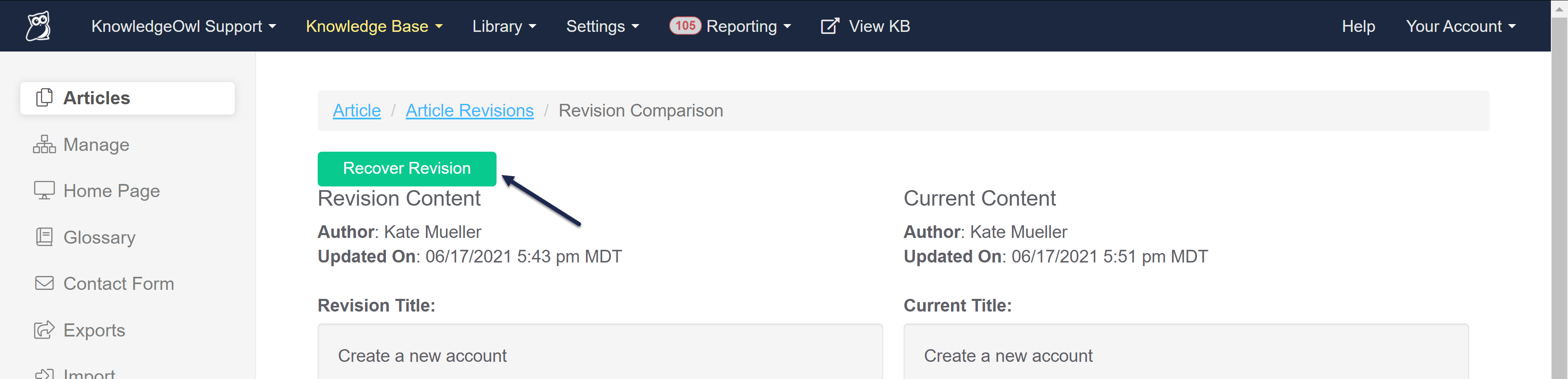 Sample Recover Revision button
 - This will kick you back to the article editor, with the contents of that revision in the editor for your review. You can confirm it's what you want or even make additional changes.
- To finish recovering the revision, you must Save the article.
KnowledgeOwl automatically removes the oldest revision once you save more than 10 revisions for a given article. You cannot and do not need to delete revisions.
Revisions are stored for all article versions created or edited after 12 April 2024.
As with regular articles, the Recent Revisions link appears in the upper right of the editor once a version has been saved twice after its creation.
Not applicable for older versions
Until April 2024, we only stored revisions for the current active version. We began tracking revisions for all versions on 12 April 2024. Versions created or edited before 12 April 2024 didn't have full revision tracking. For questions about revision history in older versions, refer to the Older versions section below.
Older versions
Versions created and last edited before 12 April 2024 don't have their full revision history tracked.
For older versions, revisions were only tracked for the currently active version.
After a version was deactivated, it continued to hold the revisions it had from when it was activated (max of 10).
Let's look at an example to see how this plays out:
Linus has a published article called "Learning to Fly". By default, this has only one version: Version 1.0.
- Revisions for Version 1.0 are tracked, up to a maximum of 10.
Linus needed to make some updates, so he created a new minor version, Version 1.1.
- Revisions for Version 1.0 are still tracked, since it is still the current active version.
- Revisions for Version 1.1 weren't tracked because it wasn't activated yet.
Linus continued to save changes to Version 1.1 but hadn't activated it yet.
- Those changes weren't tracked as revisions because Version 1.1 had not yet been activated.
- Any revisions to Version 1.0 were still tracked.
Linus activated Version 1.1.
- From activation onward, revisions for Version 1.1 are tracked.
- No further revisions for Version 1.0 were tracked.
- The historical record of the last 10 revisions for Version 1.0 still appears if he views Version 1.0 in the editor; they won't appear when we view Version 1.1 in the editor.