
Follow the instructions on this page to check if an article or category is restricted to reader groups.
The information below varies based on whether you're using our 2026 new editor or old editor.
To figure out which instructions to follow:
- Open any article for editing.
- If the lefthand navigation is collapsed and there's a link near the top of the page to Switch to old editor, follow the New editor documentation.
- If the lefthand navigation is expanded and the top of the editor and the righthand column have a heavier grey background, follow the Old editor documentation.
Here are side-by-side examples of the new editor and the old editor:
 Sample New editor
 Sample Old editor
Try out the new editor
We'd love your feedback on the new editor. To switch to the new editor, open any article for editing and select the Switch to new editor link at the top of the editor.
Check reader group restrictions in new article editor
To check an article's reader group restrictions in the new article editor:
- Open the article for editing.
- In the Permissions section, check the Read access:

- If the Read access section displays All readers, this article has no reader group restrictions of any kind.
- If the Read access section displays Limited to specific reader groups, it's restricted to one or more reader groups.
- If you need more details about whether these reader groups are inherited or explicitly assigned, select any of the text next to Read access to open the Read access modal. The wording in the modal helps you determine where the restrictions are coming from:
- If the Read access section originally read Limited to specific reader groups and the Read access modal options include All readers, this article has already been restricted to one or more reader groups on its own. It has no inherited restrictions, so you can use the checkboxes to add and remove reader groups who should be able to view this content:
 Sample Read access modal with Limited to specific reader groups option
- If the Read access section originally read Limited to specific reader groups and the Read access modal options include All readers, this article has already been restricted to one or more reader groups on its own. It has no inherited restrictions, so you can use the checkboxes to add and remove reader groups who should be able to view this content:
- If the Read access section originally read Limited to specific reader groups and the Read access modal options include All category reader groups, this article is inheriting reader group restrictions from its category:
 Sample Read access modal with All category reader groups option
- If All category reader groups is selected, the article is using all of the reader group restrictions it's inheriting from the category.
- If Limited to specific category reader groups is selected, the article is restricted to a subset of its inherited reader groups.


Check reader group restrictions in category and old article editor
For both categories and articles in the old article editor, check two sections of the editor to see if the content is restricted to any reader groups:
- Restrict Viewing to Reader Groups: These checkboxes are for group restrictions assigned to the particular category or article you're looking at in the editor when no Inherited Restrictions are present.
- Checking or unchecking these boxes will immediately change which groups can see this content.
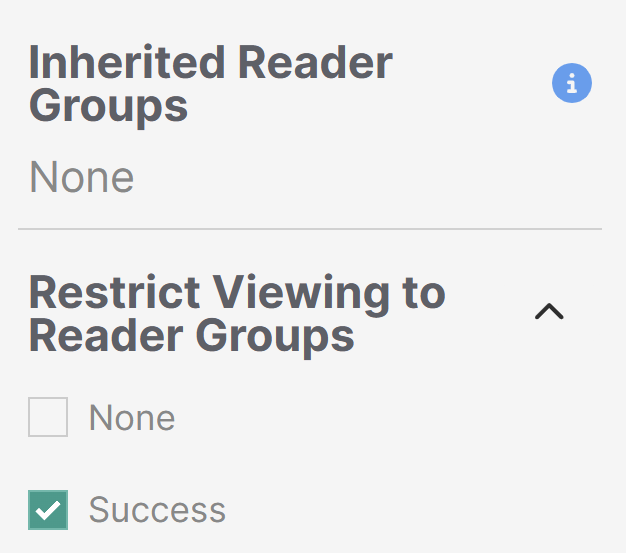 Sample Restrict to Groups section with no Inherited restrictions. This article is restricted to members of the Success group
- Checking or unchecking these boxes will immediately change which groups can see this content.
- Inherited Restrictions: When an entire category or subcategory is restricted to groups, those reader group restrictions are "inherited" by the content in that category. Any groups listed in the Inherited Restrictions section are being inherited by one or more parent categories. You'll need to check each parent category above the current content to see where those groups are being set.
- Inherited group restrictions must be changed in the parent category where they are set. They cannot be changed in individual articles.
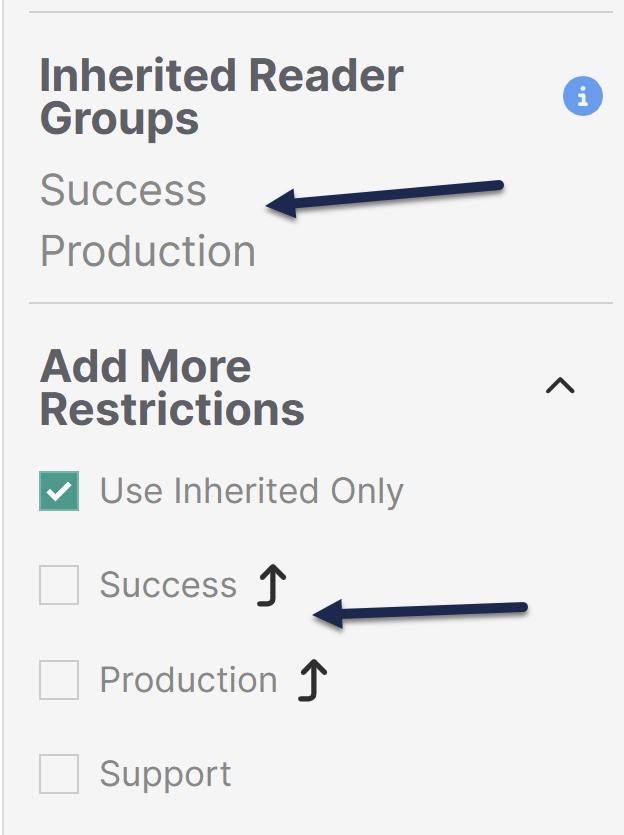 Inherited Restrictions cannot be removed from this content; look at the parent categories to adjust these groups!
- Inherited group restrictions must be changed in the parent category where they are set. They cannot be changed in individual articles.
- Add More Restrictions: If an article or category has Inherited Restrictions, the section below is called Add More Restrictions. It will default to Use Inherited Only. Additional groups checked here mean that a reader must be a member of at least one of these groups in addition to the Inherited Restrictions groups.
-
Inherited groups will also have an up arrow icon next to them in the Add More Restrictions section. Unchecking a box next to an inherited group restriction won't remove the inherited restriction.
-
For articles, you can also see both of these fields in the Manage Articles CSV export, in the Permissions section: Restrict to Groups and Inherited Group Restrictions.