
You must have Full Admin Access to create author teams. This feature is available on select plans.
To create a new author team:
- Go to Account > Authors. The Authors page opens to the Authors tab.
- Open the Teams tab.
- Select + Add Author Team.
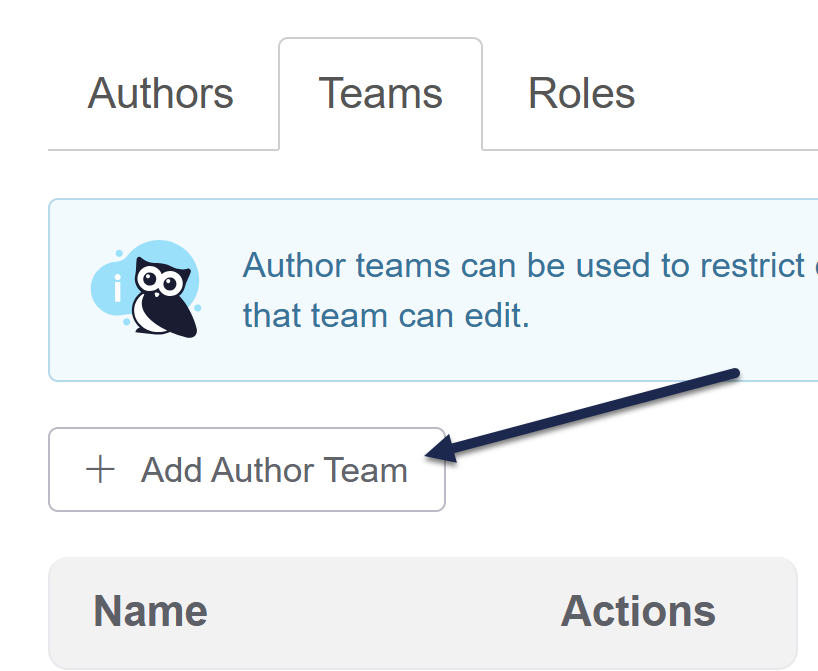 Select + Add Author Team
The Create Team modal opens. - Enter the Team Name you'd like to use for this team.
- Then select Create Team. Your team's created.
Once your team is created, add authors to the team and restrict categories or articles to editing by that team.
To set the order of your author teams:
- Go to Account > Authors.
- Select the Teams tab.
- Use the up arrows next to your team names to reorder the teams.
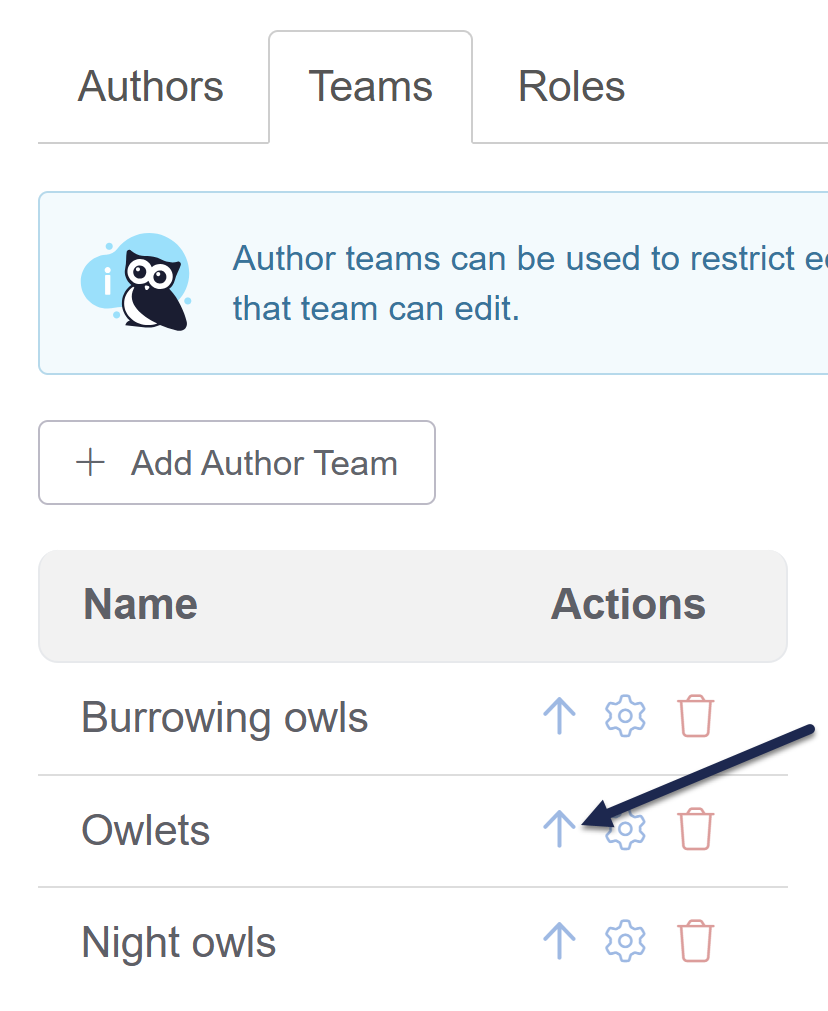 Use the up arrow in the Actions section to reorder teams
This changed order will be displayed in:
- The old article editor in the Restrict Editing to Author Teams section
- The new article editor in the Edit access section
- The category editor in the Restrict Editing to Author Teams section
- The edit screen for an individual author in the Author Teams section
- In Manage in the create/edit filter, the Teams section
Refer to Restrict content to author teams for more information on using author teams in articles and categories to determine who can edit them.
You must have Full Admin Access to edit and delete author teams. This feature is available on select plans.
Once you've used author teams for a while, you may need to edit or delete existing teams, whether to rename existing teams or to remove teams you're no longer using.
Edit an author team
To edit an author team:
- Go to Account > Authors. The Authors page opens to the Authors tab.
- Open the Teams tab.
- Find the author team you wish to make changes to.
- Select the gear cog icon to the right of the team:
The Edit Team modal opens. Select the gear cog icon next to the team you wish to edit
 - Edit the Team Name to reflect your new desired team name.
- Select Update to save your changes.

The author team will update on this page, in the author profile details, and in the category and article editors.
Delete an author team
To delete an author team you no longer need:
- Go to Account > Authors. The Authors page opens to the Authors tab.
- Open the Teams tab.
- Find the author team you wish to delete.
- Select the trashcan icon to the right of the team:
The Delete Author Team modal opens.
 Select the trashcan icon to the right of the team you wish to delete
 - Select OK to delete the team.

When you delete an author team, it is removed from this page, all authors it was assigned to, and all content where it was applied. It's also removed from the category and article editors.
If you need to delete multiple teams, we recommend waiting a few minutes between deletes to make sure the team has been fully removed everywhere before you delete another team.