
Only authors with Admin ability to purge articles have permission to purge deleted articles.
When you delete an article in your knowledge base, it's stored in the Deleted article filter in Manage. If you'd like to remove them from your Deleted filter and your knowledge base completely, use the Purge option in Manage. This page explains how to purge deleted articles to permanently remove them from your knowledge base.
Not recoverable
Purging deleted articles permanently removes them from KnowledgeOwl. Articles are not recoverable once they've been purged.
To purge deleted articles:
- In the lefthand navigation, select Manage.
- Use the filter dropdown to select the Deleted filter:
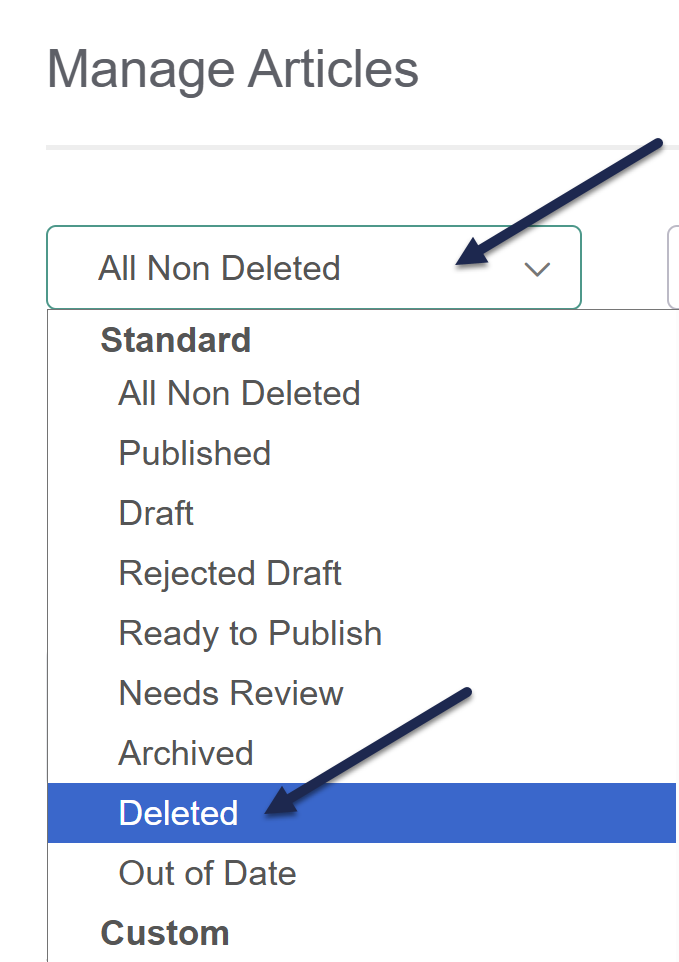 Select the Deleted filter.
 - Check the boxes next to the deleted articles you'd like to purge. To make your selection, you can:
- Select individual checkboxes to select only specific articles:
 Purge selected articles
 - Select all articles on the page using the checkbox in the header:
 Purge all deleted articles on the current page
 - Select all deleted articles by checking the box in the header and selecting the "Select all xxx articles that match the current filter" link in the list. This will select all deleted articles regardless of pagination:
 Purge all deleted articlesWhen all in filter is selected, the message updates to: "All xxx articles that match the current filter selected." You can undo this by selecting Clear selection.
- Select individual checkboxes to select only specific articles:
- With your articles selected, select the Purge link above the article list:
 Purge selected deleted articles
 - The Purge deleted articles modal opens. Review the number of articles to make sure it aligns with the number of articles you want to purge.
- Type PURGE ARTICLES into the textbox and select Purge.
- A progress bar will appear at the top of the page. Once the selected articles are purged, a success message will show with the number of articles purged.


