
A title tag is an HTML element that specifies the title of a webpage. They're one of the most powerful tools for Search Engine Optimization (SEO) for publicly available knowledge bases.
This is not the title of the article or category displayed at the top of the page—for that, we use the Title you set. The title tag isn't actually displayed on the page—instead, the <title> HTML element is tucked into the <head> of the page, like this:
 Title tags are found in the <head> of a webpage, in the <title> element.
If you don't enter an explicit Title Tag for an article or category, KnowledgeOwl automatically generates one, formatted as: Article Title | Knowledge Base Name
The title tag should be an accurate and concise description of a page's content, but it gets used in a few additional ways:
- Browsers display the title tag as the browser tab title/label when someone views the page.
- Search engines either use the full title tag or a truncated version of it to display in the Search Engine Results Page (SERP).
- Most social media platforms display either the full title tag or a truncated version of it when the page is shared.
This is a very small field that has a LOT of reach, and we strongly encourage you to use it for Search Engine Optimization (SEO) in publicly available knowledge bases and for added clarity within private knowledge bases.
Add or edit a title tag
The information below varies based on whether you're using our 2026 new editor or old editor.
To figure out which instructions to follow:
- Open any article for editing.
- If the lefthand navigation is collapsed and there's a link near the top of the page to Switch to old editor, follow the New editor documentation.
- If the lefthand navigation is expanded and the top of the editor and the righthand column have a heavier grey background, follow the Old editor documentation.
Here are side-by-side examples of the new editor and the old editor:
 Sample New editor
 Sample Old editor
Try out the new editor
We'd love your feedback on the new editor. To switch to the new editor, open any article for editing and select the Switch to new editor link at the top of the editor.
Add or edit a title tag in the new editor
To add or edit a custom title tag to your article in the new article editor:
- Open the article for editing.
- If you're entering a title tag for the first time in this article, the field doesn't display automatically. Select the triple dot ... menu in the upper right of the editor and select Add custom title tag to display it:
 Select the triple dot ... menu and select Add custom title tag
 - The Title tag field is added just below the article's title.
- Select anywhere in the Add custom title tag... text next to Title tag:
 Select anywhere in the text box next to Title tag
The Title tag text box activates.
- Enter or update your preferred title tag.
- Be sure to Save your changes.


Once you have a Title tag entered, the field always displays at the top of the editor.
Add or edit a title tag to a category or old article editor
To add or edit a custom title tag to a category or to an article in the old article editor:
- Open the article or category for editing.
- Enter or update the Title Tag, located below the body editor pane:
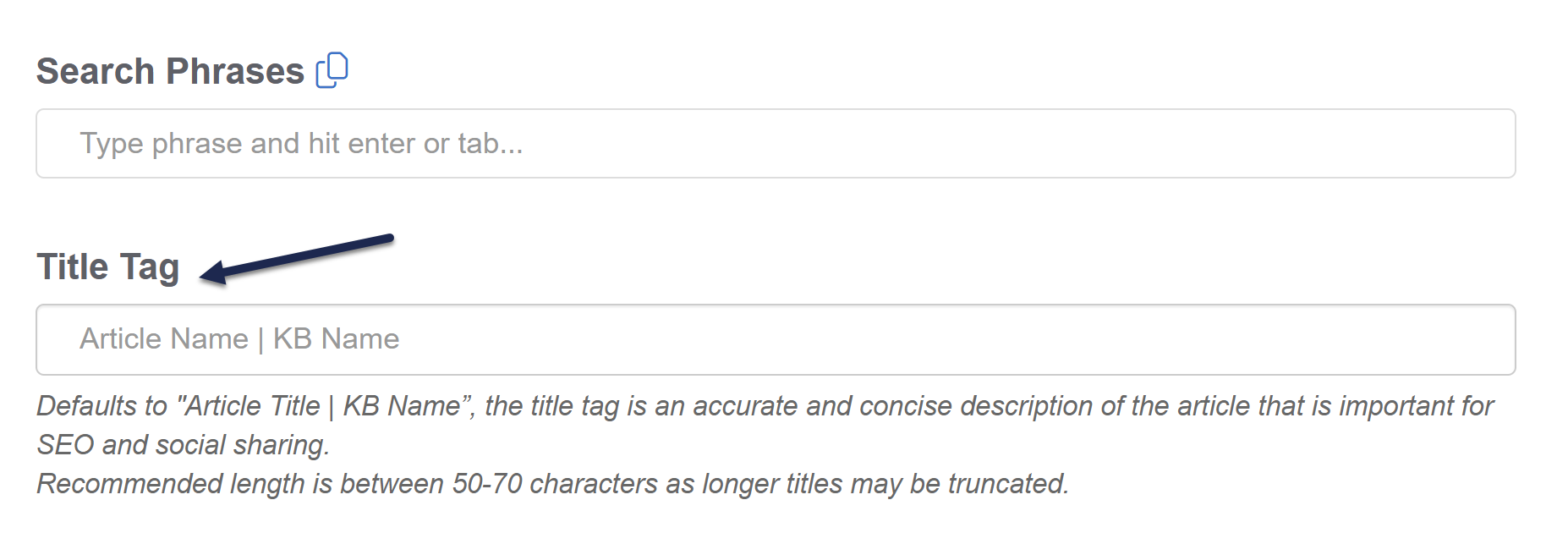
- Be sure to Save your changes.
Tips for writing a good title tag
Here are a few tips to get the most out of your title tags:
- Get into the habit of manually adding a title tag to your articles, so you become aware of it as a field you need to use.
- Consistently use either Sentence case or Title Case for your title tag. This should match your style guide settings.
- Write the title for a human, not for the search engine bots or crawlers. Your title tag should be descriptive and accurate and help readers know if they actually want to view the page.
- Write a unique title tag for each article and category in your knowledge base.
- Don't repeat the same keyword multiple times in a title tag.
- When all else fails, match your article title. (Google and other search engines will sometimes rewrite your title tag; for some reason, having the title match the first Heading 1 on the page seems to decrease their tendency to do so.)
- As you edit or update articles, especially when you update the actual title or substantively update the content, review your title tag.
- Focus on keeping your title tags at 60 characters or less. Our editor allows you to add up to 100 characters, but pretty much every tool will truncate it down to around 55-60, so it's good to get into the habit of shortening it.
Let us help you be succinct
If you'd like to encourage yourself to write concise article titles, head to KB settings > Domain. Under SEO settings, check the box to Ensure that page titles do not exceed 55 characters and Save. 😉
- To preview how your title tag will appear when it's used by a search engine, moz.com has a Title Tag Preview tool that's fairly useful.
Learn more
Here are two additional resources to help you dig into title tags more:
- moz.com's Title Tag
- ahrefs.com's How to Craft the Perfect Title Tag (Our 4-Step Process)
And if you're working on SEO optimization, check out Kate's blog post Knowledge base SEO tips for those of us who hate SEO.