
Search phrases can help your readers discover your content. Use them as a way to add search words or phrases that don't already exist in the article body, title, permalink, or meta description.
When to use search phrases
Search phrases are useful in the following situations:
- You want readers to find the article when they search for a phrase or term that doesn't occur in the content itself. If you have a word or phrase that has an equivalent synonym frequently, consider using the Synonyms feature for this use case.
- You want to "boost" a particular article to the top of the search results when a given word or phrase is searched. Refer to Search weights for more information on configuring search weights.
- For example:
You have three articles about taming owls: "Introduction to owl taming", "Best owl breeds for taming", and "Dangers of owl taming". The default search places "Dangers of owl taming" at the top of the results when readers search for "owl taming". You want your readers to start with the introduction (and not be scared off!). Add the phrase "owl taming" in the Search Phrases field in the "Introduction to owl taming" article only. It should bump to the top of the list.
- For example:
Save yourself work
You don't need to use search phrases if you're happy with the order of search results and the phrase is present in the title, permalink, body, or meta description fields.
The information below varies based on whether you're using our 2026 new editor or old editor.
To figure out which instructions to follow:
- Open any article for editing.
- If the lefthand navigation is collapsed and there's a link near the top of the page to Switch to old editor, follow the New editor documentation.
- If the lefthand navigation is expanded and the top of the editor and the righthand column have a heavier grey background, follow the Old editor documentation.
Here are side-by-side examples of the new editor and the old editor:
 Sample New editor
 Sample Old editor
Try out the new editor
We'd love your feedback on the new editor. To switch to the new editor, open any article for editing and select the Switch to new editor link at the top of the editor.
Add individual search phrases
To add a word or phrase as a search phrase:
- Open the article for editing.
- Select any of the text next to Search phrases.
- Type the term or phrase you want to use into the Search phrases textbox.
- If the Search phrases field isn't displayed near the top of the editor, select + Add field > Search phrases to display it.
- If you always want it shown in the editor, select Edit default field settings, select Search phrases, and Save. Refer to Article editor settings for more detailed instructions on changing these settings.
- Press
Enterto add the phrase. Sample search phrase in the article editor
 - Be sure to Save your changes.

Add several search phrases at once
To add several search phrases at once, you'll need to have a comma-separated list of search phrases. For example:
backup,back-up,how do I back up my data,how do I backup my data,how do I back-up my data,disaster recovery
Once you have your comma-separated list:
- Open the article for editing.
- Paste your comma-separated list of search phrases in the Search phrases field. They'll automatically be split into separate search phrases at the comma and added:
- Be sure to Save your changes.
Add individual search phrases in the old article editor
To add a word or phrase as a search phrase in the old article editor:
- Open the article for editing.
- Type the term or phrase you want to use in the Search Phrases field.
- Press
EnterorTabto add the phrase.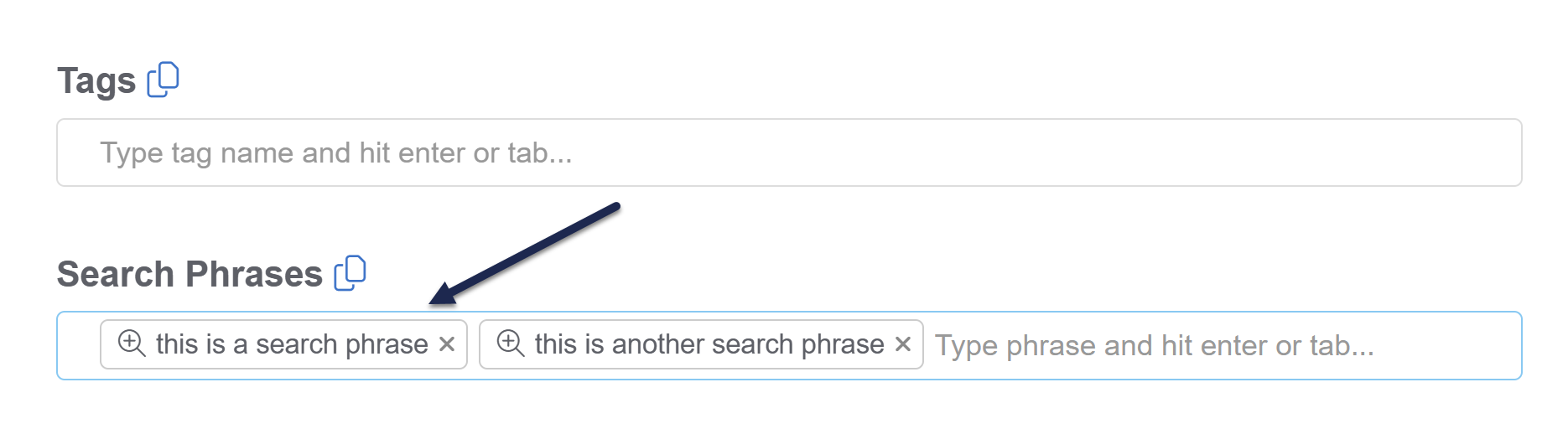
- Be sure to Save your changes.
Add several search phrases at once in the old article editor
If you have a lot of search phrases you want to add to an article, paste in the full list of search phrases at once to save yourself time.
You'll need to have your search phrases in a comma-separated list, for example: phrase 1,phrase 2,phrase3,phrase four.
- Open the article for editing.
- Paste your comma-separated list of search phrases in the Search Phrases field.
- Press
EnterorTabto add the phrases: - Be sure to Save your changes.