
Authors are allowed to share logins in KnowledgeOwl, meaning that two people can be logged in as the same author at the same time.
For security and content auditing reasons, we advise against sharing logins. But we understand that sometimes it's financially necessary!
When you delete an author, they'll no longer be able to log in to KnowledgeOwl.
Content
Deleting an author will not delete or lose any content that they edited. Articles and categories will still have the same content they had before the deletion.
Revision history
Deleting an author will not remove their name from the revision history for a given article. Their name will still be displayed in the revision list and when comparing revisions.
The Saved last date/timestamp and the revision history/count of the article will stay the same.
However, if they were the last person to save an article, you will not see their name listed as the "saved by" author in the Saved last date/timestamp and the revision history/count. No name will be listed until another author saves a change.
Author dropdowns and filters
If the author is not listed as the Author for any articles:
- Their name will disappear from the Author dropdown.
- Their name will disappear from the Manage articles Author filter.
If the author is listed as the Author for any articles:
- Their name will continue to appear in the Author field for those articles until you manually change the Author to a different author. (We recommend using a Manage custom filter with the Author as a filter, then bulk editing to update the author for all their articles. Refer to Create a custom Manage filter Manage Articles filter and Bulk edit articles for more information.)
- If you display author name in your articles (especially in blog style articles), their name will continue to display until you change the Author for that article.
- In the article editor, their name will continue to appear in the Author dropdown as long as they are listed as the Author for any articles.
- In Manage, their name will continue to appear in the Author filter as long as they are listed as the Author for any articles.
URL checker
Deleting an author will remove their name from the Author and Last Modified Author columns in the URL checker report. Refer to Use the URL checker links report for more information.
If you have multiple people viewing or editing the same article at the same time in the app, the editor will warn you by adding an icon to the editor and adding a color outline around it. (If the author has added a photo or icon, you'll see that; otherwise you'll see a generic gray gravatar shape.)
Viewing conflict
If someone else has the article open in the editor, but hasn't made any changes, you'll see the icon appear and a yellow outline will appear around the editor. You can hover your mouse over the icon to see the person who's accessing it:
 Sample editor viewing conflict--note the yellow highlight around the editor
Editing conflict
If someone else has the article open in the editor and has started making changes, you'll see the icon appear and a red outline will appear around the editor:
 Sample editor editing conflict--note the red highlight around the editor
If one of you tries to save changes that would overwrite the changes the other one has made, you'll get a warning and can choose whether to keep your changes and overwrite the other person's, or to discard your changes and keep the other person's.
KnowledgeOwl generally sends three possible emails to authors:
- Welcome email: Sent when an author is given access to a new knowledge base.
- Password reset email: Sent when an author requests a password reset or an admin initiates a password reset for the author.
- Security token email: Sent if we detect unusual behavior when an author attempts to log in and we initiate a security protocol.
If we have trouble sending the welcome and password reset emails for any reason, a red notification dot appears over the notification bell in the site banner:

If you select the notification bell icon, a message that your account has email delivery problems will appear:
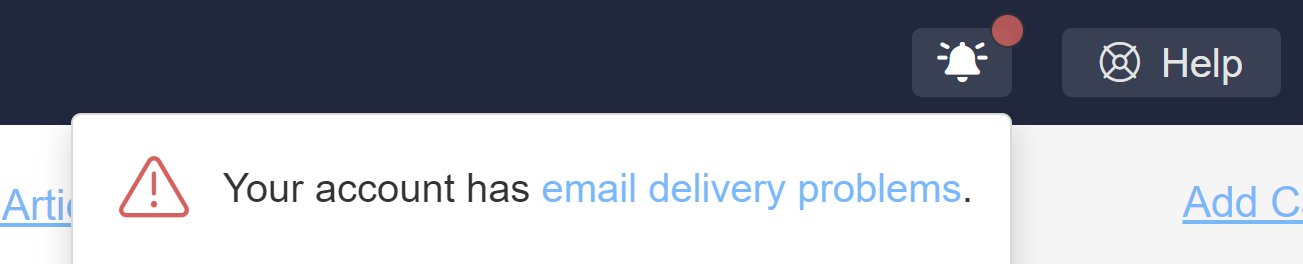 Sample email delivery problem notification when expanded
Select the hyperlinked email delivery problems text to open a modal that tells you what delivery issues there are.
When author email addresses have issues, we'll provide a list of the author(s) impacted by the issues. Select Resolve next to each author's name to jump straight to their details to try to troubleshoot what's going on.
 Sample author issue message in pop-up
Any authors with email issues will also display a red envelope next to their name in the Account > Authors page.
 Sample email delivery issue icon in the author list
When you view the details for an author who has email delivery issues, a warning message displays above their email address. This message varies based on what's going on with the author. There are two basic scenarios you might see:
- Email has issues but wasn't added to our suppression list: You'll see a green Clear this Warning button in the warning.
- Email has issues and was added to our email suppression list: You'll see a green Remove button in the warning.
We'll walk through each scenario in more detail below:
Email has issues/not in suppression list
Email issues can crop up for any number of reasons, like migrating an email server, a temporarily full mailbox, and more. Many of these issues won't result in an email being added to the email suppression list. Some of them may resolve on their own; others may need explicit troubleshooting to resolve.
Our delivery provider only captures these warnings at the time it tries to send an email, so it's possible that the issue we captured has already been resolved by the time you look at it. If the email isn't on the suppression list, you can just Clear the warning in these cases!
When the email hasn't been added to the email suppression list, the author's warning will look a bit like this:
 Sample author warning without suppression list; details of the delivery problem will vary
The information provided here is intended to help you troubleshoot what's going on with the author's email address:
- Our mail delivery provider captures the error code or message when email delivery fails. We'll display this back to you here. You can use this to help troubleshoot what's going on:
- Verify that the author's email address is properly spelled. (You'd be amazed how often this is an issue for new author accounts!)
- Try sending an email to that address and see if you get a bounce/undeliverable message.
- If you don't get a bounce, the issue may have already resolved itself, and you can proceed with the next step.
- If you do get a bounce, the issue still requires troubleshooting. We recommend reaching out to you or your author's email administrator with the delivery error message to expedite resolution.
- Once it seems like the author's email can properly receive emails, select Clear this Warning to clear the warning and remove the banner from your site. The warning will reopen if we continue to experience any issues emailing this author.
Email has issues and is in the suppression list
If an email address has had delivery problems and the address appears invalid, nonexistent, or misconfigured, it will also automatically be added to our mail provider's suppression list.
In these cases, even if the email address's underlying issue was resolved, KnowledgeOwl won't send any emails to the address until you remove it from the suppression list.
Our delivery provider only captures these warnings at the time it tries to send an email, so it's possible that the issue we captured has already been resolved by the time you look at it. If that's the case, you'll only need to Remove the email from our suppression list.
When the email has been added to the email suppression list, the author's warning will look a bit like this:
 Sample author warning message with suppression list Remove button
- Our mail delivery provider captures the error code or message when email delivery fails. We'll display this back to you here. You can use this to help troubleshoot what's going on:
- Verify that the author's email address is properly spelled. (You'd be amazed how often this is an issue for new author accounts!)
- Try sending an email to that address and see if you get a bounce/undeliverable message.
- If you don't get a bounce, the issue may have already resolved itself, and you can proceed with the next step.
- If you do get a bounce, the issue still requires troubleshooting. We recommend reaching out to you or your author's email administrator with the delivery error message to expedite resolution.
- Once it seems like the author's email can properly receive emails, select Remove. This will:
- Remove the email address from our suppression list.
- Clear the warning from the author's details.
- Remove the warning banner from within KnowledgeOwl.
The warning will reopen if we continue to experience any issues emailing this author.
KnowledgeOwl uses a mail delivery provider to send automatic emails like:
- Author welcome and password reset emails
- Reader welcome and password reset emails
- Contact form submissions
Our mail delivery provider keeps track of email bounces and errors.
If a bounce occurs because the intended recipient's email address is returned as invalid, nonexistent, or temporarily misconfigured, our mail provider adds that email address to a suppression list.
Suppression lists are tools mail delivery providers use to help protect your email reputation, by preventing you from sending a bunch of emails that will bounce.
Once an email address has been added to this suppression list, no further emails will be sent to the email address unless you remove the email address from the suppression list.
For the email types listed above, KnowledgeOwl will throw a prominent warning when an email is having issues. When you view the details for that email address, we'll indicate if an address has been added to that automatic suppression list and give you the option to remove it from our suppression list so you can restart sending email to it.
For more details on working with each type of warning, see: