
An author is someone who can log in to the back-end of your KnowledgeOwl account (app.knowledgeowl.com) to create and edit content, customize settings, or view reporting. Authors are different from readers, who view the live knowledge base only.
All authors are assigned to specific knowledge bases with a particular role for that knowledge base. That role determines what actions the author can complete in that knowledge base. So an individual author account can have editor permissions on one knowledge base, writer permissions on another, and no access to a third knowledge base. You can create custom roles for your authors, too.
In addition to their knowledge base + role assignments, authors can have four additional administrative permissions:
- Full Account Admin: Grants authors the ability to edit other authors' accounts and other high-level administrative settings; can assign and remove authors from knowledge bases (including themselves). This shows the Authors, API, Readers, and Webhooks menu options within the Account menu and Security and access menu.
- Admin access to readers: Grants authors access to the Readers option within the Account menu and Security and access menu. They can view all reader accounts across all your knowledge bases and can create and edit existing readers. They will not see Authors, API, or Webhooks menu options.
- Admin ability to purge readers: Grants authors the ability to permanently purge deleted readers in the account. Refer to Purge deleted readers for more information.
- Admin ability to purge articles: Grants authors the ability to permanently purge deleted articles from the Manage page in any knowledge base in the account. Refer to Purge deleted articles in Manage for more information.
KnowledgeOwl has four levels of author permissions.
Think of these permissions as answering several questions:
- Which knowledge bases do I have access to? (Knowledge base roles)
- What actions can I complete in those knowledge bases? (Knowledge base roles + Admin rights)
- Which content can I complete those actions on? (Author teams)
- Which content can I see in those knowledge bases? (Reader groups)
Knowledge base roles
Knowledge base roles set which actions an author can do in the assigned knowledge base.
You specify what role an author has for each knowledge base they can access.
All knowledge bases come with two default roles: Editor and Writer. If these roles aren't specific enough, you can also Create a custom author role to create roles that better fit your organization's workflows and requirements.
An author with no access will not be able to access the knowledge base.
Admin rights
Admin rights grant authors permission to change settings for the account as a whole and/or for readers.
Choose from these admin rights: Full Account Admin, Admin access to readers, Admin ability to purge readers, and Admin ability to purge articles:
- Authors with Full Account Admin permissions can perform all administrative actions in your account. This gives authors access to the entire Account menu, which gives them the ability to add new and edit existing authors; manage author permissions; create and delete API keys; update billing information; create and manage readers, reader groups, and reader settings; purge deleted readers; create and edit SMTP services; create and edit notifications; and cancel your account.
- Authors with Admin access to readers can create and manage readers, reader groups, and reader settings without the other Full Account Admin actions.
- Authors with this right can also be given the Admin ability to purge readers. This lets you control whether you want to also give them the ability to permanently purge deleted readers.
- Authors with Admin ability to purge articles can permanently purge deleted articles from the Manage page in any knowledge base in the account.
Author teams
Control which content authors can edit using Author Teams.
After you create an Author Team, you can restrict editing access for categories and articles to one or more teams. Only authors who are part of those teams will be able to edit restricted articles or articles within a restricted category.
Reader groups
Control which content authors can view using reader groups.
By default, all authors have access to see all content.
When you create a reader group, you can restrict categories and articles to that group. If you choose to restrict an author to a reader group, the author will only be able to see content that is not restricted or that is restricted to their reader group.
Use with caution
We only recommend assigning Reader Groups to authors if you have a very specific reason to do so, since this will completely hide some content from authors and each time a new reader group is added, you must manually assign authors to the new group.
All new authors are created with self-administered usernames and passwords. This means that they log in to https://app.knowledgeowl.com/login using a username and password specific to KnowledgeOwl.
If you're using SAML/SSO for your knowledge base, you may want to force your authors to log in through that SAML/SSO instead of through https://app.knowledgeowl.com/login.
If you would like to force your authors to authenticate using SAML/SSO, change their author Login Type to require SAML login via knowledge base. To do so:
- Go to Account > Authors.
- Open the author you'd like to set to SAML/SSO (or create a new author).
- In Login Type, select the option for SAML login via knowledge base.
- KnowledgeOwl uses the author's email address as their SSO ID. If your SSO system uses an ID different ID for this author, enter it in the SSO ID. Otherwise, leave the SSO ID blank.
- Select the knowledge base the author needs to log in through from the SAML KB dropdown. You must have a knowledge base with a SAML integration configured for this to work.
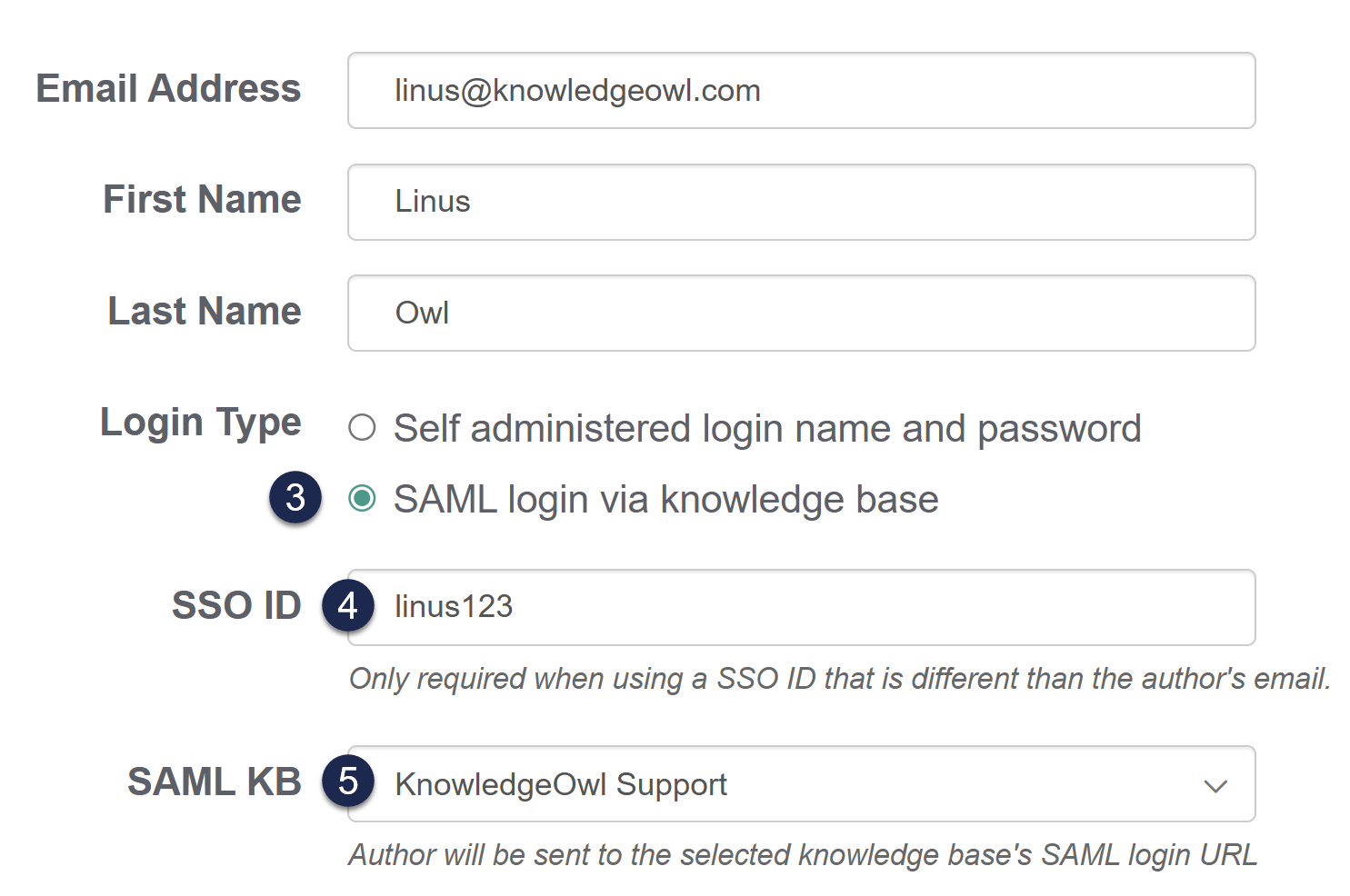 Sample author with SAML login via knowledge base, and separate SSO ID from the email address
 - As with other authors, set the Admin Rights, KB Access, Author Teams, and Reader Groups that are appropriate.
- Save the author.
This setting basically says: "If the author tries to log in normally (using https://app.knowledgeowl.com/login), don't let them use their username/password and send them to the SAML login page for the KB I choose instead."
This setting does not need to be enabled for your authors to be able to log into the application via SAML.
When you set an author's login type to SAML login via knowledge base as you're creating their account, they receive a customized welcome email. Instead of the link to app.knowledgeowl.com/login, the email displays the URL of your knowledge base's SAML login and steps on how to access the KnowledgeOwl app from there (the URL in Step 1 will change based on your settings):

Potential for lockout
if you set an author to SAML login via knowledge base and your SAML/SSO has an issue, your authors will be locked out of KnowledgeOwl. We recommend keeping at least one author set up as self-administered in case this happens.
Most customers keep username and password self-administered so that their authors have an alternate way to log in in cases of issues with SAML/SSO. Generally only customers with very strict security requirements enable this option.